50 Best ChatGPT Prompts for Google Workspace (Docs, Sheets, Gmail, Slides)
50 tested ChatGPT prompts organized by Google app — Docs, Sheets, Gmail, and Slides. Each prompt includes the expected output and tips for customization.

The difference between professionals who get measurable value from AI and those who don’t usually comes down to one thing: prompt quality. Vague instructions produce vague results. Specific, well-structured prompts produce output you can actually use. This collection of ChatGPT prompts for Google Workspace is built on that principle — every prompt here is specific, tested, and immediately applicable to real work.
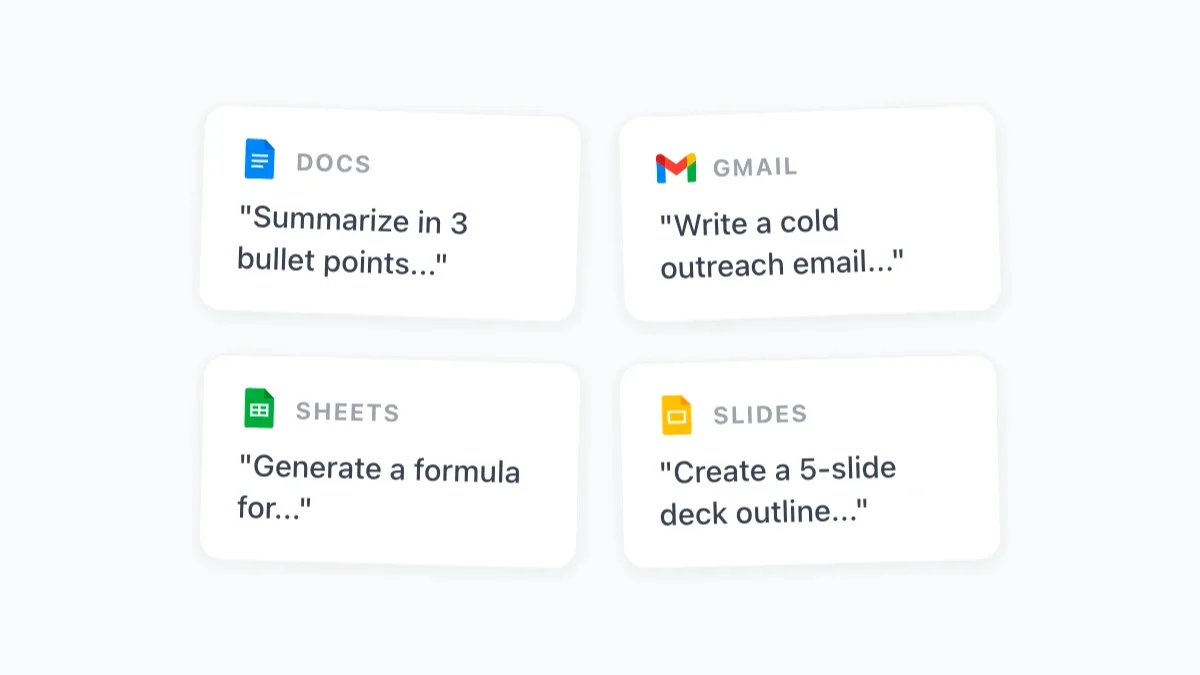
The 50 prompts below are organized by app: Google Docs, Sheets, Gmail, and Slides. Each one includes the expected output type and a note on how to customize it for your context. All of them work with GPT Workspace, the Chrome extension and Add-on that puts AI directly inside your Google apps.
How to Use These Prompts with GPT Workspace
If you’re new to GPT Workspace, the setup is straightforward. Install the Chrome extension from the Google Workspace Marketplace, open any Google Doc, Sheet, Slides file, or Gmail compose window, and the AI sidebar will appear on the right. Type or paste any prompt from this list directly into the sidebar, hit generate, and the output appears — ready to insert into your document or email with one click.
For Sheets prompts, some outputs will be formulas you paste into cells directly. Others will be Apps Script code you run via Extensions > Apps Script. The prompt itself will tell you which format to expect.
You don’t need to memorize these prompts. Once you’ve identified the ones you’ll use regularly, save them to the GPT Workspace prompt library — then they’re accessible in one click, every time.
How to Write Better Prompts (Quick Framework)
Before the list, a brief framework for adapting any prompt to your specific situation. Strong prompts share four elements:
Role: Tell the AI who it’s acting as. “You are an experienced project manager…” or “Act as a senior financial analyst…” — this shapes tone, vocabulary, and the assumptions the AI brings to the task.
Context: Describe the situation. What document is this for? Who is the audience? What’s the goal?
Task: Be specific about what you want. Not “write an email” but “write a 150-word follow-up email for a client who hasn’t responded to a proposal after 10 days.”
Format: Specify the output structure. Bullet points, numbered list, table, short paragraphs — explicit formatting instructions prevent the AI from guessing.
Every prompt below uses this structure. When you adapt them, follow the same pattern and your results will be consistently better.
Google Docs Prompts: Writing, Editing, Summarizing
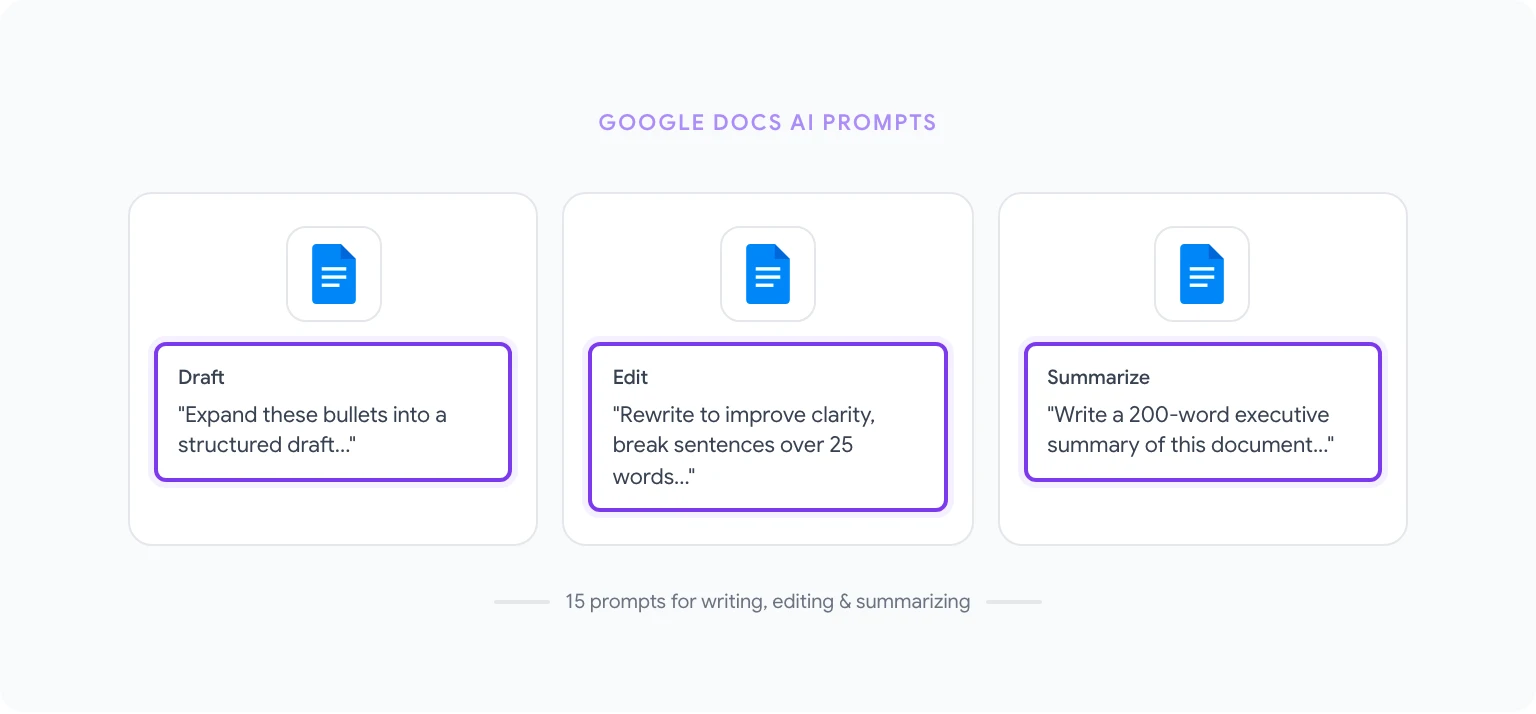
These 15 prompts cover the most common writing and editing tasks in Google Docs.
1. First draft from bullet points “Expand these bullet points into a well-structured first draft. Each bullet should become a paragraph of 80–120 words. Maintain a [professional/casual/technical] tone throughout. [Paste bullet points]” Output: Full draft ready for editing.
2. Executive summary “Write a 200-word executive summary of this document. Focus on the key findings, the main recommendation, and the business impact. Avoid jargon. The audience is senior leadership with limited time.” Output: Concise summary you can place at the top of any report.
3. Improve clarity and readability “Rewrite the selected text to improve clarity and readability. Break up any sentences over 25 words. Replace jargon with plain English. Keep all factual claims and data intact. Maintain the original meaning.” Output: Cleaner version of the selected passage.
4. Convert meeting notes to action items “Convert these meeting notes into a structured action item list. For each item include: assigned owner (if mentioned), deadline (if mentioned), and a one-sentence description of the task. Group items by priority: High, Medium, Low.” Output: Formatted action list ready to share.
5. Adjust tone for audience “Rewrite this paragraph for [audience: e.g., non-technical executives / entry-level employees / external clients]. Keep the core message identical but adjust vocabulary, level of detail, and assumed prior knowledge accordingly.” Output: Audience-appropriate version of the content.
6. Generate a document outline “I need to write a [document type: e.g., project proposal / competitive analysis / onboarding guide] about [topic]. Create a detailed outline with H2 and H3 headings, and a 1–2 sentence description of what each section should cover.” Output: Full document outline to write from.
7. Write a conclusion “Write a conclusion paragraph for this document. Summarize the 3 main points, restate the central recommendation, and end with a clear call to action for the reader.” Output: A closing paragraph that ties the document together.
8. Fact-check formatting “Review this document and flag: (1) any inconsistent number formatting (e.g., ‘10%’ vs ‘ten percent’), (2) inconsistent capitalization in headings, (3) any sentences over 30 words that might benefit from breaking up. List each issue with the relevant quote and a suggested fix.” Output: Editing checklist to work through.
9. Add examples to abstract concepts “For each abstract claim or principle in this document, suggest one concrete real-world example that would make it easier for a general business audience to understand. Format as [Original Claim] → [Suggested Example].” Output: Paired examples to insert alongside abstract statements.
10. Summarize for a specific purpose “Summarize this document as if you were briefing a colleague who needs to represent our position in a meeting. Give them: background (2 sentences), our main argument (3 bullets), potential objections they might face and how to respond (2–3 pairs), and the outcome we want from the meeting.” Output: A pre-meeting briefing document.
11. Generate FAQ from a document “Based on this document, generate a FAQ with 8–10 questions a reader is likely to have after reading it. Write clear, specific answers for each question using only information present in the document.” Output: A FAQ section to append to any document.
12. Rewrite in active voice “Rewrite this selected text so that all passive voice constructions become active voice. Where a subject is missing in the original (true passive), infer the most logical subject from context.” Output: More direct, readable version of the text.
13. Create a table of contents “Based on the heading structure of this document, generate a formatted table of contents. Use the H2 headings as main entries and H3 headings as sub-entries. Include placeholder anchor links in the format #heading-slug.” Output: A formatted TOC to place at the top of the document.
14. Reduce word count by 30% “Shorten this document by approximately 30% without losing any important information. Remove redundancy, combine related sentences, and eliminate filler phrases. Preserve all data, named entities, and specific claims.” Output: A tighter version of the document.
15. Generate a project proposal “Write a project proposal for [project name]. Include: Problem Statement, Proposed Solution, Scope of Work, Timeline (use realistic phases), Resource Requirements, Risks and Mitigations, and Expected Outcomes. Audience: [internal leadership / external client]. Length: approximately 600 words.” Output: A complete first-draft proposal.
For more detailed guidance on these workflows, see how to use ChatGPT in Google Docs.
Google Sheets Prompts: Formulas, Analysis, Cleaning
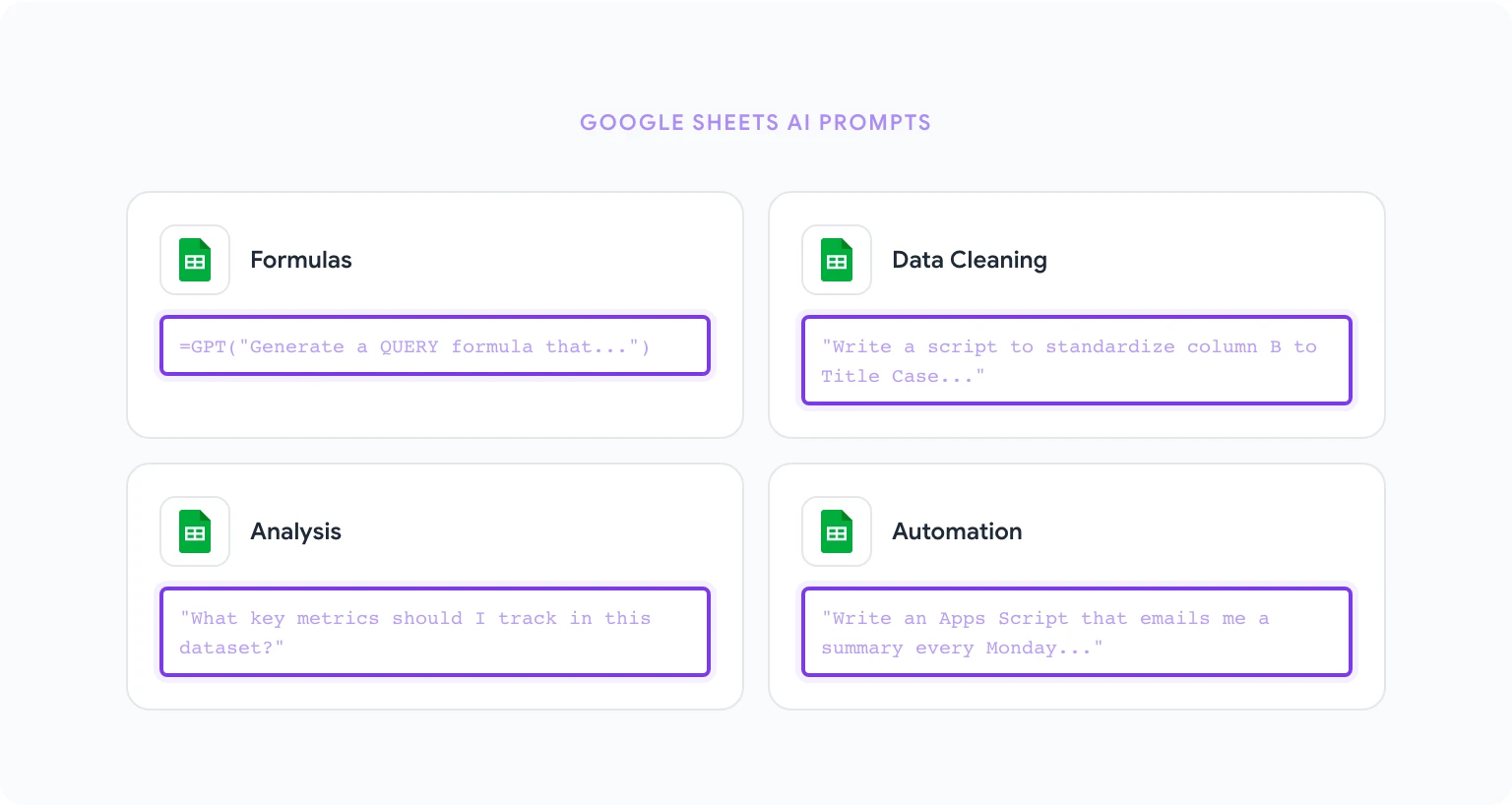
These 15 prompts address the most common analytical and data management tasks in Sheets.
16. Generate a formula with explanation “Write a Google Sheets formula that [describe what it should do, e.g., ‘looks up a customer ID in column A of Sheet2 and returns the matching email address from column C’]. After the formula, explain what each part does in plain English.” Output: Ready-to-use formula with documentation.
17. Clean inconsistent data “I have a column of company names with inconsistent formatting: some are all caps, some have extra spaces, some include legal suffixes like ‘Inc.’ or ‘LLC’ inconsistently. Write a Google Sheets formula or Apps Script to standardize all values to Title Case with no extra spaces. Apply to column B.” Output: Formula or script to normalize the data.
18. Create a pivot table structure “Describe the steps to create a pivot table in Google Sheets that shows [describe goal, e.g., ‘total revenue by region and product category, for Q1 2026’]. My data has these columns: [list columns]. Specify which fields go in Rows, Columns, and Values.” Output: Step-by-step pivot table setup instructions.
19. Identify and handle duplicates “Write a Google Sheets formula to identify duplicate values in column A (Customer ID) and mark them in column B with ‘Duplicate’ or ‘Unique’. Then write a second formula to count the total number of duplicates.” Output: Two formulas for duplicate detection and counting.
20. Dynamic dropdown with validation “Explain how to create a dynamic dropdown in Google Sheets where the options in column B change based on the value selected in column A. My categories are in a separate ‘Reference’ sheet. Include the exact formula and data validation steps.” Output: Instructions and formula for dependent dropdowns.
21. Conditional formatting rules “Write the steps to apply conditional formatting in Google Sheets to: highlight all cells in column C red if the value is below 0, yellow if between 0 and 100, and green if above 100. Include the exact custom formula syntax.” Output: Conditional formatting setup guide.
22. ARRAYFORMULA for bulk processing “I need to apply a formula to every row in column D (rows 2–1000) that calculates [describe calculation]. Write this using ARRAYFORMULA so it runs on the entire column with a single formula in D2.” Output: An ARRAYFORMULA-based solution.
23. Summarize and analyze a dataset “Look at this dataset summary: [paste column headers and 5–10 sample rows]. Tell me: (1) What key metrics I should track, (2) Three formulas I should add to analyze this data, (3) Any data quality issues visible in the sample.” Output: Analytical recommendations and formulas.
24. Build a dashboard layout “I want to build a KPI dashboard in Google Sheets for [describe business area, e.g., sales performance]. My source data is on Sheet1 with these columns: [list columns]. Describe the layout of the dashboard sheet, what metrics to show, and what formulas to use to pull them.” Output: Dashboard design blueprint with formulas.
25. Write Apps Script for automation “Write a Google Apps Script that runs every Monday morning and sends me an email summary of: total rows in Sheet1, any rows where column D is empty, and the sum of column B. Include comments explaining each part of the script.” Output: Commented, ready-to-run Apps Script.
26. Forecast with FORECAST.LINEAR “My dataset has months in column A and monthly revenue in column B (12 months of historical data). Write a formula using FORECAST.LINEAR to project the next 3 months. Explain the formula and note any limitations.” Output: Forecasting formula with caveats.
27. Convert text to numbers “I have a column of values formatted as text that look like currency (e.g., ‘$1,234.56’) and they won’t calculate properly. Write a formula to convert them to numeric values I can use in SUM and AVERAGE formulas.” Output: Text-to-number conversion formula.
28. Parse and split text data “I have a column of full names in the format ‘Last, First’ in column A. Write formulas to extract the first name into column B and the last name into column C.” Output: Name-parsing formulas.
29. QUERY function for filtering “Write a Google Sheets QUERY formula that pulls all rows from Sheet1 where column C equals ‘Active’ and column D is greater than 1000. Return only columns A, B, and E in the result.” Output: QUERY formula with syntax explanation.
30. Create a data validation checklist “I’m building a data entry sheet. Write a set of data validation rules for the following columns: [list columns and what they should contain, e.g., ‘Column A: dates in YYYY-MM-DD format’, ‘Column B: values from a fixed list’]. Include the exact settings for each rule in Google Sheets.” Output: Data validation configuration guide.
For hands-on tutorials, using AI in Google Sheets walks through these patterns with step-by-step examples.
Gmail Prompts: Replies, Follow-ups, Cold Outreach
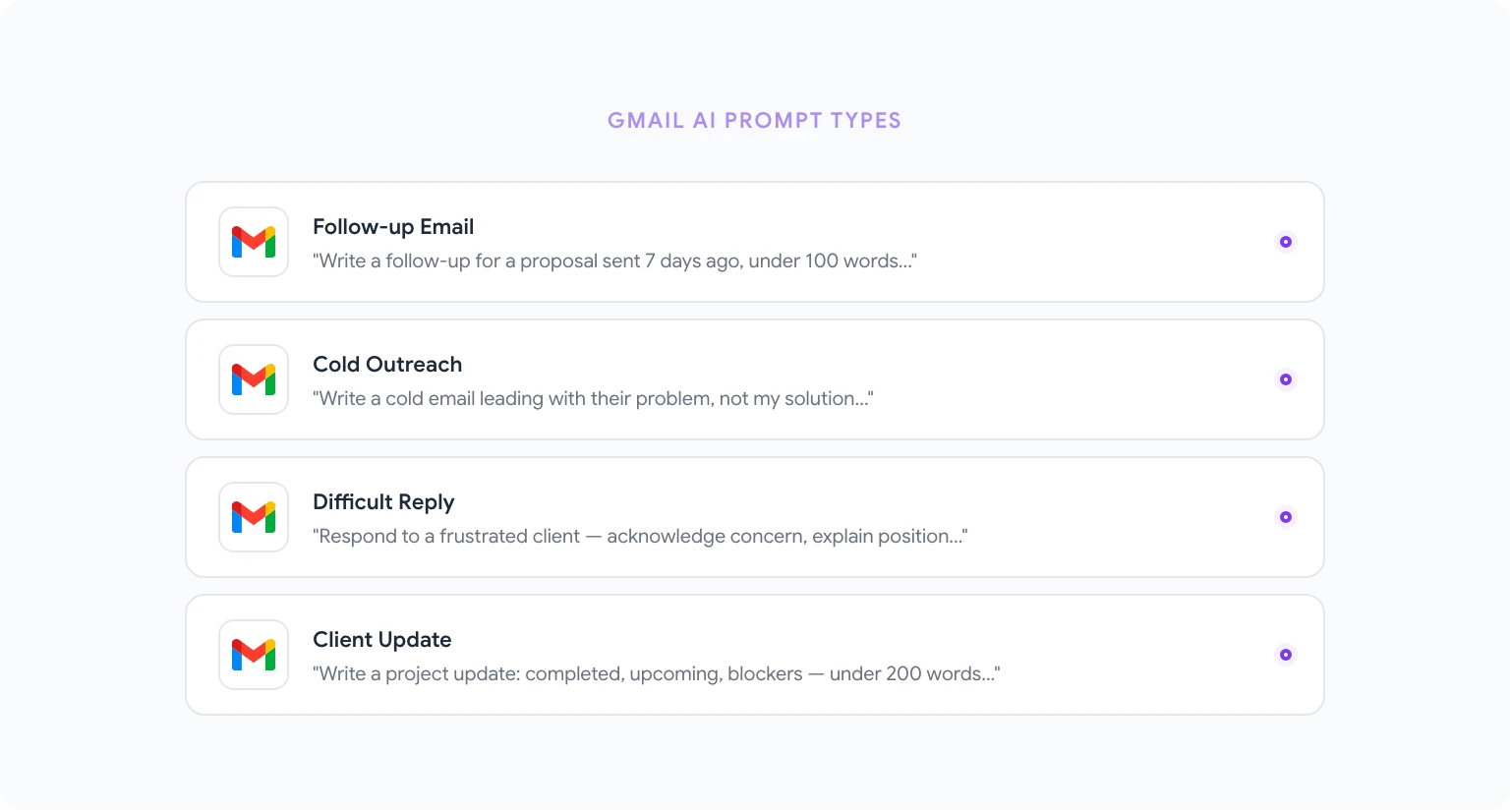
These 12 prompts cover the email tasks that consume the most time in the average workday.
31. Reply to a difficult email “I received this email: [paste email]. The sender is [describe relationship: e.g., frustrated client / senior colleague]. I need to respond in a way that: acknowledges their concern, explains our position without being defensive, and proposes a next step. Write a reply of 150–200 words.” Output: A diplomatically calibrated reply.
32. Follow-up after no response “Write a follow-up email for a [proposal / meeting request / deliverable] I sent [timeframe] ago with no response. The recipient is [describe]. Keep it brief (under 100 words), assume positive intent, and include a clear single call to action.” Output: A non-pushy follow-up.
33. Cold outreach email “Write a cold outreach email to [describe prospect]. My offer is [brief description]. The key problem I solve for them is [problem]. Keep it under 120 words, lead with their problem not my solution, and end with a low-friction call to action.” Output: A prospect-focused cold email.
34. Decline gracefully “Write a professional email declining [meeting request / project / invitation] from [describe sender]. Be polite and brief. Don’t over-explain. Where appropriate, suggest an alternative or offer to reconnect at a better time.” Output: A clean, respectful decline.
35. Request a deadline extension “Write an email requesting a [number]-day extension on [deliverable] due [date]. My reason is [brief explanation]. I want to maintain credibility and demonstrate I’m still committed to delivering quality work. Keep it under 150 words.” Output: A professional extension request.
36. Escalation email “Write an escalation email to [recipient: e.g., vendor’s account manager / internal senior leadership] about an unresolved issue: [describe issue]. The issue has been ongoing for [timeframe]. I need [specific resolution]. Tone: firm but professional, not hostile. Include a summary of prior attempts to resolve this.” Output: A structured escalation email.
37. Introduce two people “Write a brief email introducing [Person A] to [Person B]. Person A is [brief bio]. Person B is [brief bio]. The reason for the introduction is [reason]. Keep it under 120 words and end by stepping aside for them to connect directly.” Output: A mutual introduction email.
38. Client update email “Write a project update email to a client. Current status: [brief status]. What we completed this week: [list]. What’s coming next: [list]. Any blockers or risks: [if any]. Tone: confident and transparent. Length: under 200 words.” Output: A structured client update.
39. Onboarding welcome email “Write a welcome email for a new [customer / employee / partner] who just joined [describe program or organization]. Include: what they can expect in the first [timeframe], one key action to take immediately, and who to contact with questions. Warm, professional tone. Under 200 words.” Output: A welcoming onboarding email.
40. Summarize an email thread “Summarize this email thread: [paste thread]. Identify: who the key participants are, what decision or question is at the center, what positions each person has taken, and what the current status or outstanding question is. Format as a 5-sentence brief.” Output: A quick-read thread summary.
41. Response to a complaint “Write a professional response to this customer complaint: [paste complaint]. Acknowledge the issue, take appropriate responsibility (without admitting liability), explain what we will do to resolve it, and include a timeline. Empathetic but professional tone.” Output: A structured complaint response.
42. Meeting request email “Write an email requesting a 30-minute meeting with [recipient: e.g., potential partner / senior stakeholder]. The purpose of the meeting is [describe]. Offer three time slots: [slot 1], [slot 2], [slot 3]. Keep it under 100 words and make it easy to say yes.” Output: A concise meeting request.
More Gmail-specific patterns and prompts are in AI email writing with Gmail prompts.
Google Slides Prompts: Outlines, Storytelling, Design
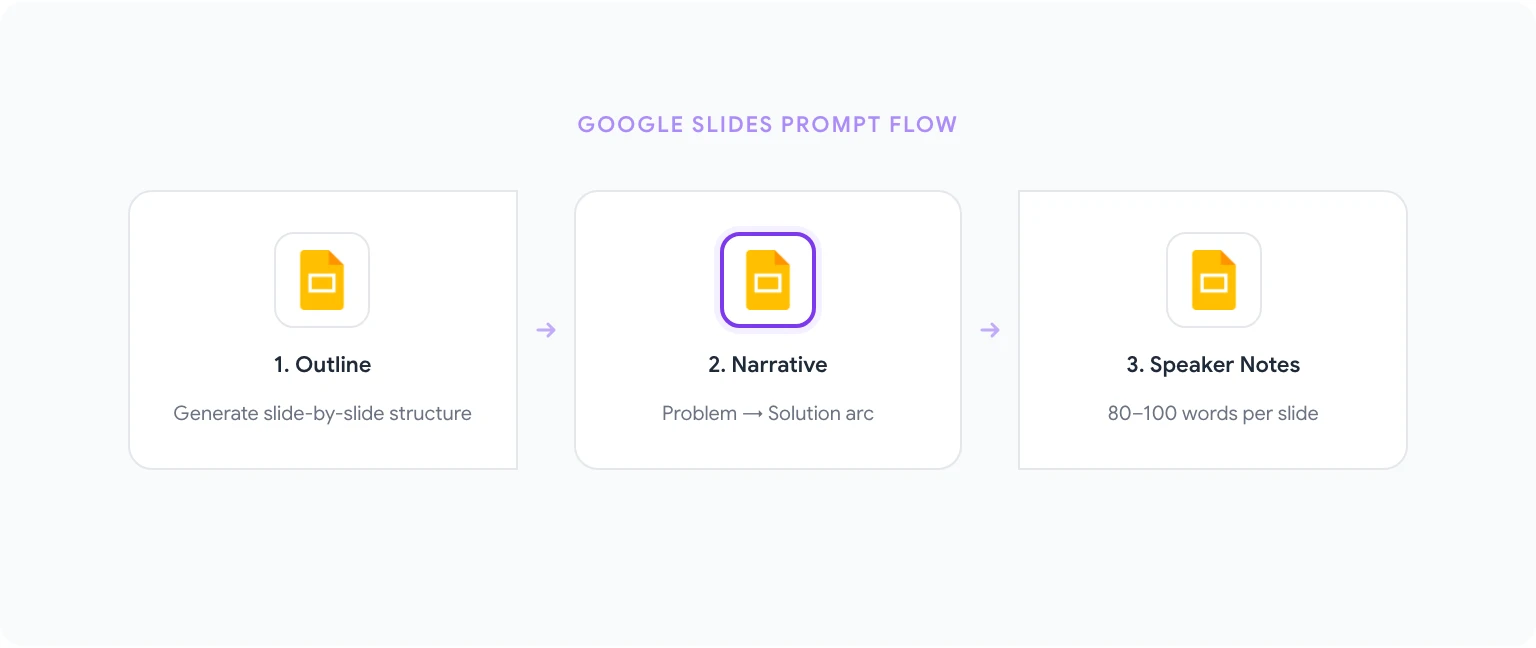
These 8 prompts address presentation structure, narrative flow, and content development.
43. Generate a presentation outline “Create a [number]-slide presentation outline for [topic]. Audience: [describe]. Purpose: [inform / persuade / update / train]. For each slide include: title, 3–5 content bullets, and the one key message this slide should leave with the audience.” Output: A complete slide-by-slide outline.
44. Build a narrative arc “I need to turn this data/information into a story arc for a business presentation: [describe content or paste data points]. Structure it using a problem-solution narrative: Setup (what’s the situation), Conflict (what’s the challenge), Resolution (what we’re proposing or what happened), Outcome (what it means). Map each narrative beat to a specific slide.” Output: Story-driven presentation structure.
45. Write speaker notes “For each slide in this outline [paste outline], write 80–100 words of speaker notes. The notes should expand on the bullet points, explain the ‘so what,’ and include a transition sentence to the next slide.” Output: Full speaker notes for a presentation.
46. Create an executive summary slide “Write content for a single executive summary slide that covers the key points of this presentation: [paste outline or describe content]. Include: the central recommendation, 3 supporting reasons, and one key risk or open question. Format as a title and 5 tight bullet points.” Output: A standalone summary slide.
47. Generate data slide commentary “I have a chart showing [describe chart: e.g., quarterly revenue by product line for 2025]. Write the title, subtitle, and 3 data callout labels that highlight the most important insight, a notable trend, and one anomaly or surprise in the data.” Output: Chart labels and title text ready to apply.
48. Rewrite bullets as complete sentences “Rewrite these slide bullets as complete, standalone sentences that communicate clearly without verbal explanation. Each sentence should be 15–25 words and readable as a mini-headline: [paste bullets]” Output: Self-explanatory slide text.
49. Objection-handling slides “I’m presenting [topic] to [audience]. What are the 4–5 most likely objections or skeptical questions this audience will have? For each objection, write a response I can include as a backup slide. Format as Objection → Response, with each response 2–3 sentences.” Output: Backup slides for Q&A handling.
50. Adapt a presentation for a different audience “I have a presentation built for [original audience]. I need to present the same core content to [new audience]. What changes should I make? Specifically: which slides to cut, which to add, what to change about tone and vocabulary, and what the new audience will care most about that the original didn’t.” Output: An adaptation guide for the existing deck.
Advanced Prompts: Multi-Step Workflows
Once you’re comfortable with single-task prompts, chaining them creates compounding value. Here are two multi-step examples:
Weekly reporting workflow (Docs + Sheets):
- Run Sheets Prompt #23 to analyze your data and identify the key metrics worth reporting.
- Run Docs Prompt #2 (executive summary) on the numbers from step 1.
- Run Docs Prompt #7 (conclusion with call to action) to close the report.
This produces a full weekly report in three prompts instead of a manual writing session.
Presentation from scratch (Docs + Slides):
- Run Docs Prompt #6 (document outline) to map your content.
- Run Slides Prompt #44 (narrative arc) to structure it as a presentation.
- Run Slides Prompt #43 (full outline with bullets) to develop the slide content.
- Run Slides Prompt #45 (speaker notes) to prepare your delivery.
For more on building automated workflows around these prompts, see how to automate Google Workspace tasks with AI.
How to Save and Reuse Your Best Prompts
The prompts you use most often should never be retyped. GPT Workspace’s prompt library lets you save any prompt, name it, and access it in one click from within any Google app.
To save a prompt:
- Open the GPT Workspace sidebar.
- Click Prompt Library in the sidebar navigation.
- Click New Prompt, paste your prompt, give it a descriptive name, and save.
- Next time, click the prompt name in the library — it fills the input field instantly.
For teams, prompts can be shared across accounts so everyone uses the same standardized versions. This is especially valuable for client communication templates and report formats where consistency matters.
The 10 AI productivity hacks for Google Workspace post goes deeper on building a prompt library system that scales across your team.
Start with the prompts that match the tasks you do most today. Save the ones that deliver, refine them over time, and expand to new workflows as they become relevant. That’s the approach that turns a list of 50 prompts into a genuine productivity system.