
How to Use AI in Google Sheets: Automate Formulas, Analysis & Reports
A practical guide to using AI inside Google Sheets with GPT Workspace. Generate formulas from plain English, analyze data automatically, clean messy spreadsheets, and build reports — no coding required.


Most people who use Google Sheets regularly hit the same ceiling: they know what they want to do with their data, but they can’t write the formula for it, or the formula they’d need is a nested nightmare they’d rather not maintain. Learning how to use AI in Google Sheets closes that gap entirely. You describe what you want in plain English, and the AI writes the formula — or runs the analysis — for you.
This guide covers the practical side of using AI inside Google Sheets with GPT Workspace: generating formulas, analyzing and summarizing data, cleaning messy spreadsheets, building reports, and avoiding the mistakes that waste time. No prior experience with advanced formulas or data analysis required.
Why Use AI in Google Sheets?

The honest answer: because formulas are hard to write, easy to break, and time-consuming to explain to someone else. The average knowledge worker who uses Sheets daily isn’t a spreadsheet power user — they’re a marketer tracking campaign budgets, an HR manager managing headcount, a sales rep maintaining a pipeline, or an operations lead monitoring KPIs.
These users don’t want to learn ARRAYFORMULA or nested IF chains. They want the column summed by category, the duplicates removed, the data sorted by a conditional rule, and a summary at the top that updates automatically. AI makes all of that achievable without any formula knowledge.
Beyond formulas, AI in Sheets adds a layer that Sheets never had natively: natural language interpretation of your data. You can ask “What are the top 3 months by revenue in 2025?” and get a direct answer, rather than needing to sort, filter, and scroll through hundreds of rows to find it yourself.
If you’re already using AI in other Google apps, this is a natural extension. The same tool that lets you use ChatGPT in Google Docs also powers Sheets support — so you’re not learning a new interface.
Installing GPT Workspace for Google Sheets
Getting set up takes about two minutes:
- Go to the GPT Workspace listing on the Google Workspace Marketplace.
- Click Install and grant the requested permissions. The add-on needs access to read and write your spreadsheet data — this is required for it to insert formulas and results directly into cells.
- Open any Google Sheet. Click Extensions in the top menu.
- You’ll see GPT for Sheets, Docs, Slides, Forms in the Extensions menu. Click it to open the AI sidebar.
Alternatively, if you’ve installed the Chrome extension for Docs, the same extension activates in Sheets automatically. The sidebar interface is identical across all Google apps — same prompt input, same model selector, same saved prompts library.
No API key is required to get started. The free tier gives you enough interactions to evaluate the tool before committing to a paid plan.
How to Generate Formulas with Plain English Prompts
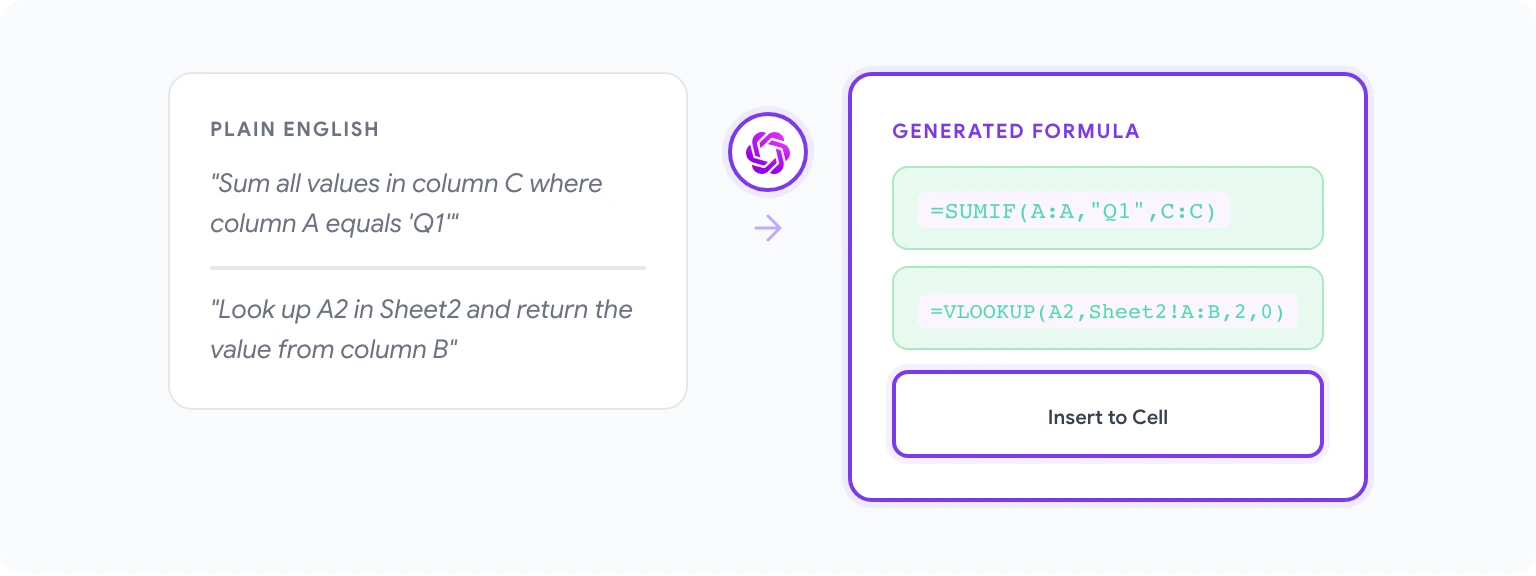
This is the feature that converts the most skeptics. Here’s the basic workflow:
- Click on the cell where you want the formula to go.
- Open the GPT Workspace sidebar via Extensions > GPT for Sheets.
- Describe what you want the formula to do. Be specific about column references if you can — it reduces the chance of the AI guessing wrong.
- The AI writes the formula in the sidebar. Click Insert to place it in the selected cell.
- Check that it behaves as expected, then copy it to other cells as needed.
Example prompts that work well:
- “Write a SUMIF formula that adds up all values in column C where column A equals ‘Q1’.”
- “Create a formula in D2 that looks up the value in A2 against the table in Sheet2!A:B and returns the matching value from column B.”
- “Write a formula that counts the number of cells in column B that contain the word ‘pending’, case-insensitive.”
- “Generate an ARRAYFORMULA that applies a 15% discount to all values in column E and puts the results in column F.”
The AI handles complex multi-function formulas just as well as simple ones. If you need a formula that combines INDEX, MATCH, and IFERROR, describing the logic in plain English is often faster than looking up the syntax yourself.
When the formula is wrong: paste the formula back into the sidebar with an explanation of what went wrong — “This formula returns an error when column A is empty” — and ask for a fix. The AI will correct it.
How to Analyze and Summarize Data with AI
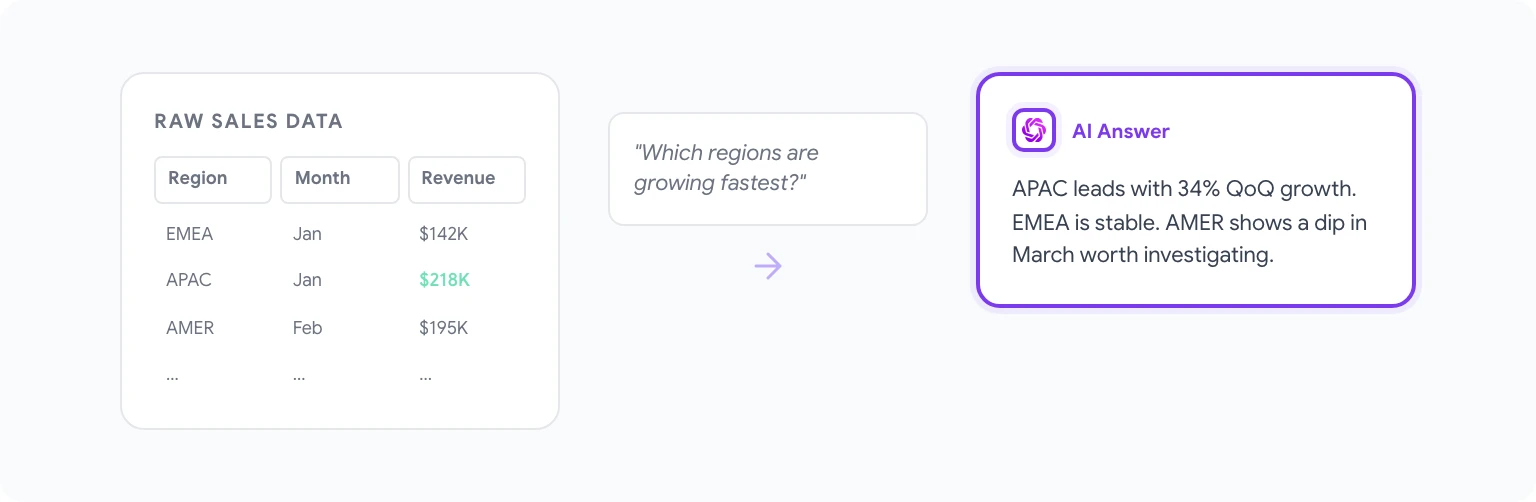
Raw data tells you nothing until you interpret it. AI in Sheets lets you ask interpretive questions directly, without building pivot tables or writing summary formulas first.
To analyze data:
- Select the data range you want the AI to analyze (e.g., a table of sales figures by region and month).
- In the GPT Workspace sidebar, describe your question: “Summarize the key trends in this data. Which regions are growing the fastest, and which months had the highest sales?”
- The AI reads your selected data and returns a narrative summary in the sidebar. You can insert it into the sheet as a text block, or just read it and move on.
For quantitative questions with precise answers:
- “What is the average order value for orders placed in Q4 2025?”
- “Which product category has the highest return rate based on this data?”
- “List the top 5 customers by total spend, ranked from highest to lowest.”
The AI will compute and answer these directly. It’s faster than building a pivot table for a one-off question you’ll never need to reference again.
For teams that run recurring reports — weekly sales digests, monthly budget reviews, quarterly performance summaries — pairing this with saved prompt templates creates a consistent, repeatable process. See automating repetitive tasks with AI for how to build those kinds of workflows.
How to Clean and Standardize Messy Data
Data cleaning is one of the most tedious parts of working in Sheets, and it’s where AI delivers a disproportionate time savings. Common cleaning tasks that AI handles well:
Standardizing inconsistent text values: Select a column with inconsistent entries — say, “USA”, “United States”, “US”, “U.S.A.” — and prompt: “Write a formula that standardizes all variations of United States into ‘United States’.” The AI will generate a nested SUBSTITUTE or IFS formula to catch the most common variations.
Extracting structured data from messy strings: If you have a column of unstructured text like “John Smith - Account Manager - EMEA” and you need to split it into separate columns, prompt: “Write formulas to extract the name, job title, and region from strings formatted like ‘Name - Title - Region’ in column B.”
Removing duplicates intelligently: Rather than just deleting duplicate rows (which loses data), you can prompt: “Write a formula that returns TRUE if the value in A2 is a duplicate of any earlier row in column A.” Then filter by TRUE to review before deleting.
Date formatting: Sheets imported from other systems often have dates in inconsistent formats. Prompts like “Write a formula to convert dates in column C formatted as ‘MM/DD/YYYY’ into Google Sheets date values” produce reliable results.
How to Automatically Categorize and Tag Data
Categorization — assigning labels to rows based on rules — is work that used to require either writing complex IF chains or doing it manually. AI makes it much more accessible.
Rule-based categorization: “Write a formula for column D that assigns ‘High’, ‘Medium’, or ‘Low’ priority based on the following rules: High if column B is greater than 10000 and column C is less than 7, Medium if column B is between 5000 and 10000, Low otherwise.”
Text-based tagging: For a column of customer feedback text, you can use AI to generate a formula that categorizes entries as “Positive”, “Negative”, or “Neutral” based on keywords — or you can ask GPT Workspace to process a batch of rows and write the categories directly if your dataset is small enough to fit in the context window.
Conditional formatting suggestions: Beyond formulas, you can ask the AI to describe the conditional formatting rules you need, then apply them manually. For example: “What conditional formatting rule would highlight rows where column E is more than 20% below the value in column F?”
For HR-specific use cases — categorizing employee survey responses, tagging applicants by skill, classifying absence reasons — there’s a more detailed breakdown in GPT Workspace for HR managers.
Building Reports and Dashboards with AI
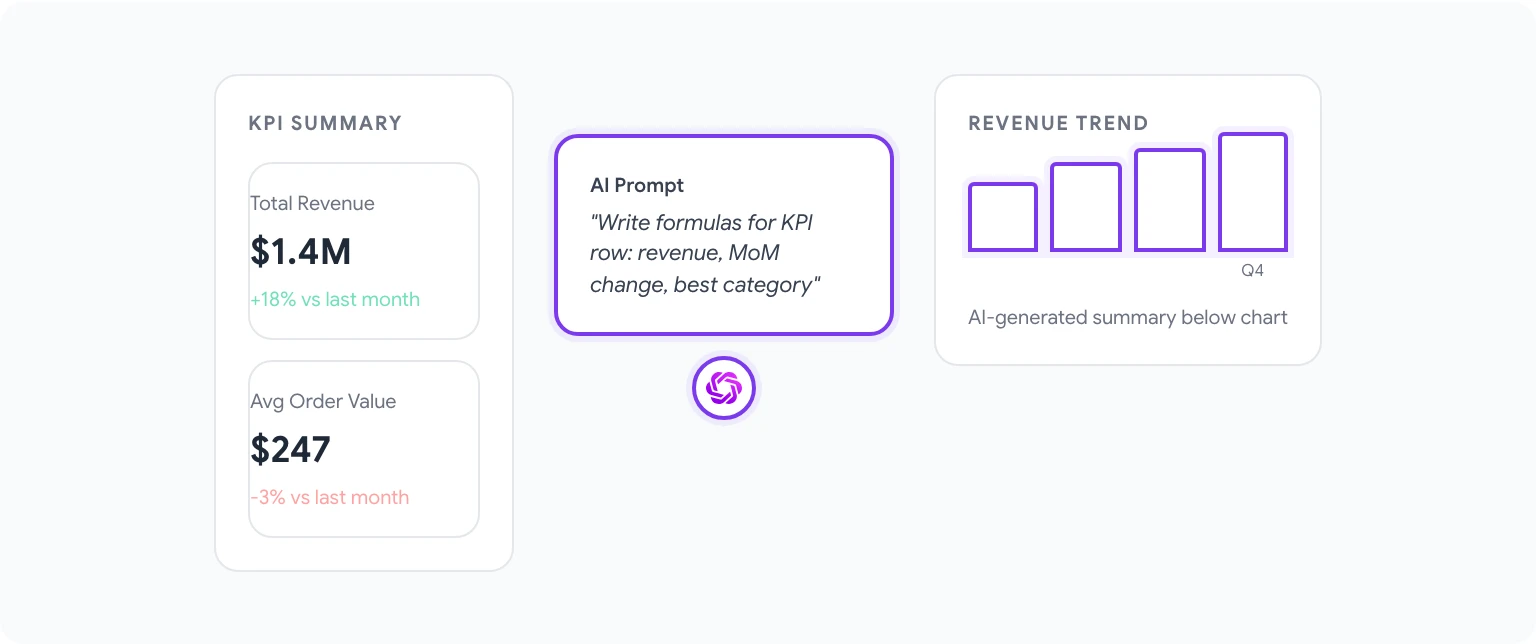
AI in Sheets doesn’t replace proper dashboard tooling like Looker Studio, but it can accelerate the process of building report-ready data significantly.
Generating summary tables: “Write formulas to create a summary table showing total revenue, average order value, and number of orders grouped by month. Use the data in Sheet1.”
Writing chart descriptions: After building a chart, you can describe the data to the AI and ask: “Write a two-sentence executive summary of what this chart shows about Q1 performance compared to Q4.” Paste that into a text box above the chart for stakeholders who don’t want to interpret the visual themselves.
Creating dynamic KPI blocks: “Write formulas for a KPI summary row that shows: current month revenue, revenue vs. last month (as a percentage change), and current month’s best-performing product category.”
Narrative data commentary: Select a data range and prompt: “Write a 3-paragraph data commentary for this spreadsheet, suitable for inclusion in a monthly board report. Focus on revenue trends, anomalies, and areas of concern.”
10 Ready-to-Use Prompts for Google Sheets
Copy these directly and adapt the column references to your spreadsheet:
- “Write a VLOOKUP that finds the value in A2 in column A of Sheet2 and returns the value from column C of that row.”
- “Create a formula that returns the most recent date in column D where column B equals ‘Closed’.”
- “Write a formula to calculate 30-day rolling average revenue using data in column C.”
- “Generate a formula that flags rows where the value in column E has not been updated in more than 14 days (use column F for last-modified dates).”
- “Write an ARRAYFORMULA that concatenates the values in columns A, B, and C with a comma separator.”
- “Create a formula that ranks each row in column G from highest to lowest, handling ties by assigning the same rank.”
- “Summarize the data in the selected range: identify outliers, calculate the mean and median, and note any rows that appear to be data entry errors.”
- “Write a formula that extracts only the domain name from a list of email addresses in column H.”
- “Generate a QUERY formula that returns all rows where column B is ‘Active’ and column D is greater than 1000, sorted by column D descending.”
- “Write a formula to calculate the number of working days between the dates in columns A and B, excluding weekends.”
For a larger set organized by use case and role, see best AI tools for Google Workspace in 2026.
Common Mistakes to Avoid When Using AI in Sheets
Being too vague about data structure. “Write a formula to sum by category” is ambiguous. Tell the AI which column has the categories, which has the values, and what the category names are. The more precise your description, the more accurate the formula.
Trusting formulas without checking them. AI-generated formulas are usually correct, but they can make wrong assumptions about your data (e.g., assuming the header row is row 1 when it’s row 3). Always verify on a few test rows before applying to your full dataset.
Using AI for real-time data that changes constantly. AI-generated summaries are a snapshot of the data at the moment you ran the prompt. For dashboards that need to update automatically, use formulas — not AI-inserted text — for the values that need to stay current.
Over-prompting for simple tasks. For straightforward operations (SUM, COUNT, simple IF), writing the formula yourself is faster. AI adds the most value for complex, multi-step formulas you’d otherwise need to look up or test extensively.
Not using the Install GPT Workspace Add-on for team rollout. If you’re deploying for a team, the Google Workspace Add-on (not the Chrome extension) is better for managed environments because it doesn’t require each user to install a browser extension individually. Your Workspace admin can deploy it to the entire organization from the Admin Console.
You can explore the full feature set on the GPT Workspace for Sheets page, including team pricing and enterprise options.
Frequently Asked Questions
Can AI in Google Sheets read formulas that already exist and explain them? Yes. Select a cell containing a complex formula, open GPT Workspace, and prompt: “Explain what this formula does in plain English.” This is invaluable for inheriting spreadsheets built by someone else.
Does GPT Workspace work with Google Sheets on mobile? The Chrome extension is desktop-only. For mobile access, use the Google Workspace Add-on version, which is accessible via the Extensions menu in the Sheets mobile app.
How much data can the AI analyze at once? Context limits depend on the underlying model. GPT-4o handles roughly 100,000 tokens of context, which corresponds to a large but not unlimited dataset. For very large spreadsheets, the most reliable approach is to select specific ranges rather than asking the AI to analyze the entire sheet.
Will AI formulas slow down my spreadsheet? No — AI-generated formulas are standard Google Sheets formulas. Once inserted, they calculate the same way any other formula would. The AI is only involved in generating them, not in running them.
Is it possible to automate recurring prompts? Not yet within Sheets natively. For automation, you’d need to combine GPT Workspace with Google Apps Script. That’s a more advanced workflow covered in detail in automating Google Workspace tasks with AI.
What’s the difference between GPT Workspace and Google’s built-in AI features in Sheets? Google’s AI features in Sheets (part of Gemini for Google Workspace) are solid for basic formula help and simple data insights. GPT Workspace adds access to multiple models, a shareable prompt library, cross-app consistency, and deeper control over how the AI interacts with your data.