How to Create AI-Powered Google Slides Presentations in Minutes
Create professional presentations in Google Slides with GPT Workspace — from generating outlines and slide content to speaker notes. Perfect for business, sales, and training decks.

Building a presentation takes far longer than it should. The process most people follow — blank slide, think of something to put on it, write too much text, repeat — produces decks that are both slow to create and ineffective to present. The content gets figured out during the build rather than before it, which means most of the time spent in slides is actually time spent thinking, not time spent designing.
Using AI as a Google Slides presentation generator inverts this process. You define what the presentation needs to accomplish, the AI generates the structure and content, and you spend your time refining and personalizing — which is the work that actually requires your expertise. The result is presentations built in a fraction of the usual time, with stronger logical flow and cleaner slide content than most people achieve through manual effort.
This guide covers how to use GPT Workspace inside Google Slides to go from blank deck to presentation-ready in a structured four-step process, along with templates, examples, and the specific mistakes that AI helps you avoid.
Why Traditional Slide Creation Wastes Time
The core problem with building slides manually is that most of the time is spent on the wrong thing. Structure decisions — what slides to include, in what order, with what logical flow — should happen before you open a presentation tool. Instead, they typically happen while you’re staring at the slide editor, which is the worst possible time: you’re already committed to a format, you can’t see the whole structure at once, and each new slide is built in isolation from the others.
This produces several failure modes that are familiar to anyone who has reviewed a lot of presentations: slides that contain too much text because the author couldn’t decide what to cut, sections that repeat information because the structure wasn’t clear before writing began, logical jumps between slides that made sense to the author but lose the audience, and speaker notes that are either empty or a copy-paste of the slide text.
AI-assisted presentation building doesn’t just save time — it prevents these structural problems from occurring in the first place. When you generate the outline before writing a single slide, you can evaluate and adjust the flow before you’re invested in any specific content.
How GPT Workspace Works with Slides
GPT Workspace embeds an AI sidebar directly into Google Slides. It works the same way it does in Google Docs and Gmail: the sidebar stays open alongside your presentation, you issue prompts, review results, and insert content directly without switching tabs or copying between tools.
The key capability for presentations is that GPT Workspace can read the context of your current slide and adjacent slides. This means you can prompt it to “write the talking points for this slide, consistent with the message of the previous three slides” — and it will use your actual deck as context, not a generic template.
Setup takes about two minutes if you don’t have it installed yet. The full process is covered in the GPT Workspace installation guide. Once installed, the sidebar activates automatically when you open Google Slides.
For model selection, GPT-4o handles presentation writing well for most tasks. For pitch decks and investor-facing content where every word choice matters, Claude 3.5 Sonnet often produces more precise language. You can switch models between prompts in the same session.
Step 1: Generate Presentation Structure

The first and most important step happens before any slide content is written. Prompt GPT Workspace to generate a complete presentation outline based on your goal, audience, and key messages.
A structure prompt should include:
- Presentation type — sales deck, investor pitch, training module, project briefing, keynote address
- Audience — who they are, their knowledge level, what they care about
- Goal — what you want them to know, feel, or do after the presentation
- Key messages — the 3–5 core points the presentation must communicate
- Length constraint — number of slides or time available to present
Example prompt for a sales deck:
“Generate a slide-by-slide outline for a 12-slide sales presentation. Audience: VP of Operations at a mid-size logistics company. Goal: move them from awareness to a scheduled product demo. Key messages: we reduce manual dispatch work by 40%, we integrate with their existing systems in under a week, two similar companies saw ROI in 90 days. Each slide in the outline: slide number, title, and a 1-sentence description of what it conveys.”
The AI will return a structured outline. Review it for logical flow — does the story progress in the right order? Does each slide earn its place? Are there gaps? Adjust the outline based on your judgment before moving to content.
This structural review is your highest-value contribution to the presentation. Once you approve the structure, paste the outline directly into a notes document or the speaker notes of blank placeholder slides. This becomes your working scaffold.
Step 2: Write Slide Content with AI
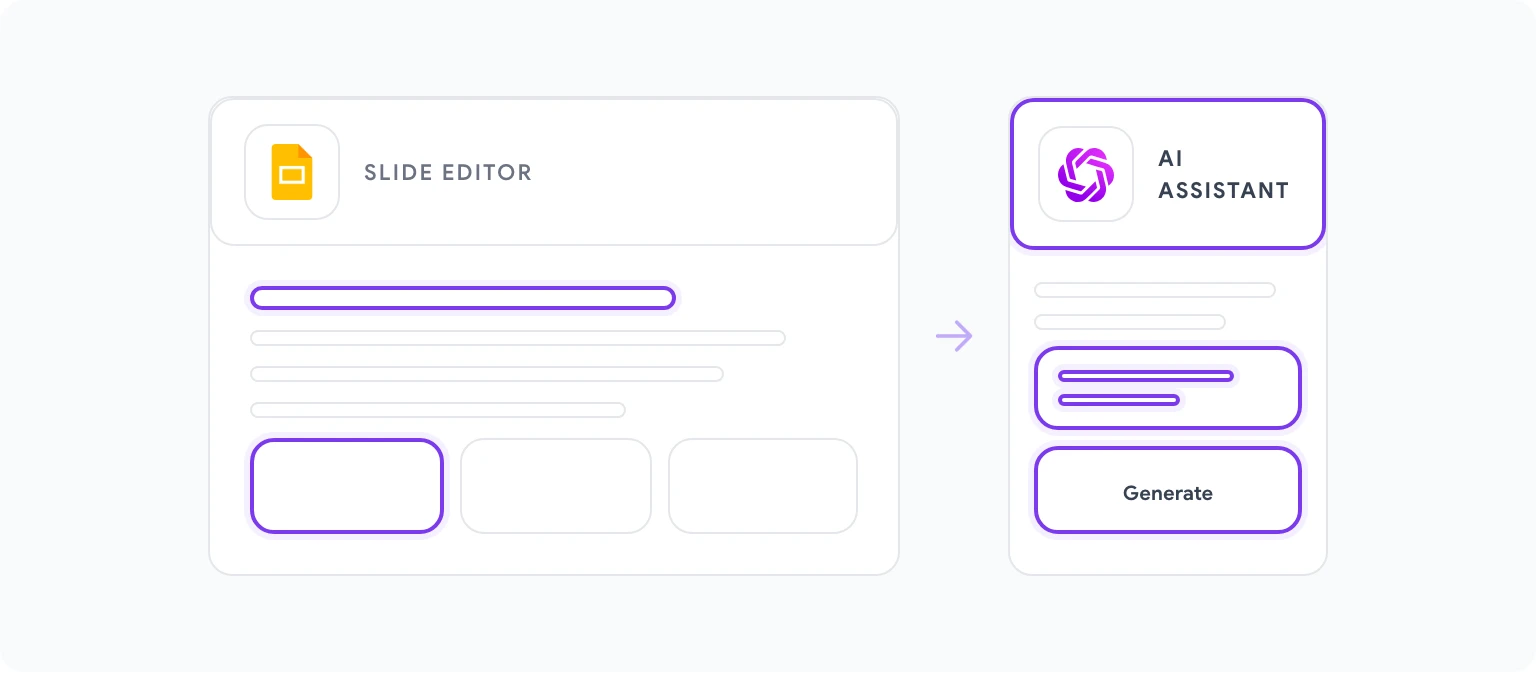
With structure confirmed, generate content for each slide individually. Slide-level prompts produce better results than trying to generate all slide content in one pass, because each slide has a specific role in the narrative and needs appropriately calibrated content.
For each slide, prompt:
“Write the content for slide [number]: [slide title]. The slide’s purpose is to [describe what it conveys]. Key information to include: [specific facts, data, claims]. Format: [headline + 3 bullet points / headline + one paragraph / visual description + caption]. Tone: [formal/conversational/data-driven]. Keep bullet points under 10 words each.”
The 10-words-per-bullet constraint is worth making explicit in every prompt. Slide text is not document text — it’s a prompt for the speaker and an anchor for the audience’s attention. Long bullets become scripts that presenters read aloud, which kills engagement. Short bullets force the speaker to elaborate verbally, which is how good presentations work.
A few additional prompt patterns that consistently improve slide content:
For data slides: “Write a headline for a slide showing [metric]. The headline should interpret the data for the audience, not just describe it. For example, not ‘Q3 Revenue: $2.4M’ but ‘Q3 Revenue Up 34% — Three Factors Drove the Increase’.”
For problem/solution slides: “Write the content for a problem slide. The problem statement should make the audience feel the pain before we offer any solution. Specific and concrete, not abstract. One or two sentences maximum.”
For transition slides: “Write a brief transition statement between the ‘Problem’ section and the ‘Our Approach’ section. It should acknowledge the problem we’ve just described and pivot to what’s possible. Maximum 2 sentences.”
Step 3: Create Speaker Notes Automatically
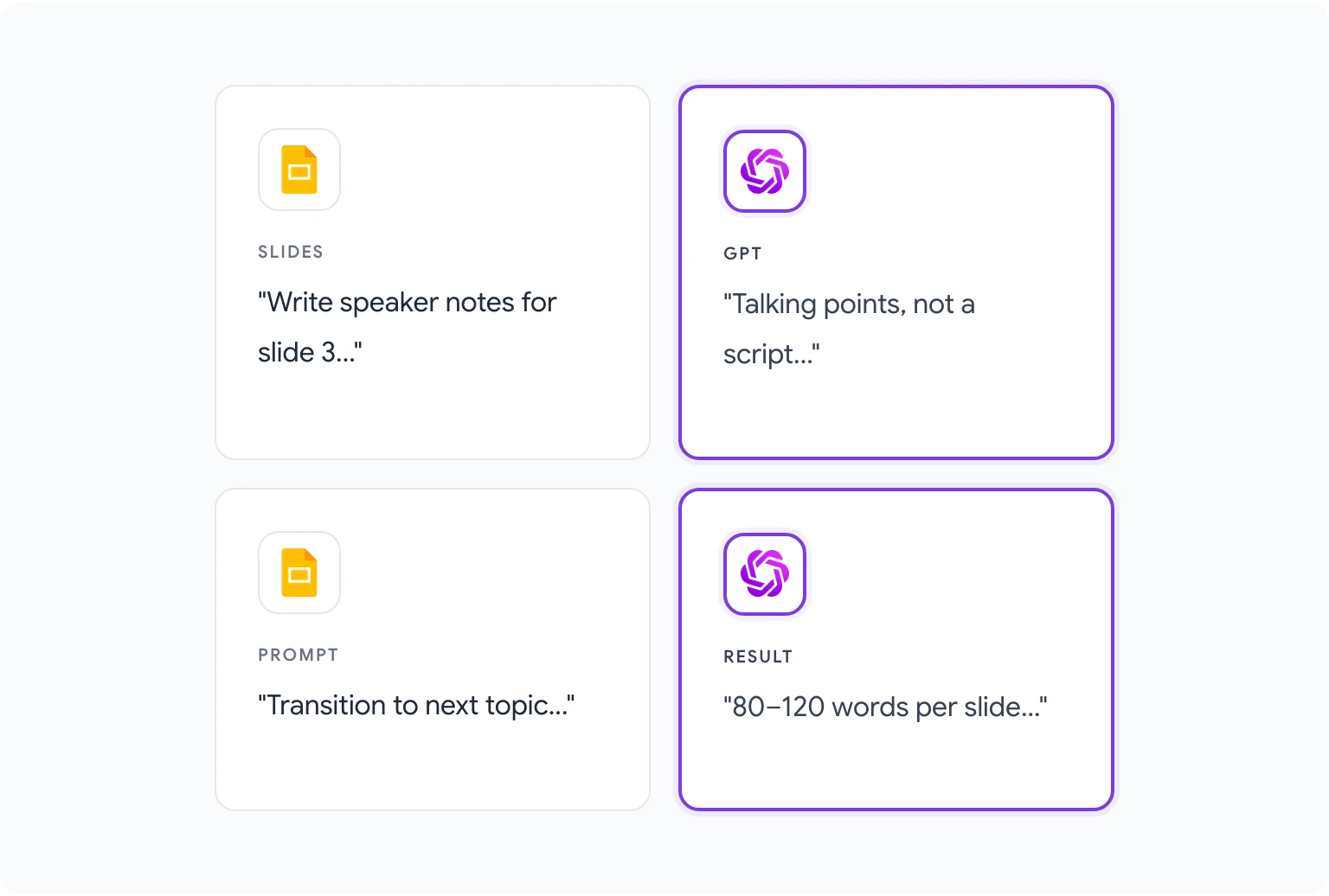
Speaker notes are the most consistently neglected part of presentation building, and also one of the most valuable when done well. A slide without speaker notes requires the presenter to hold all supporting context in their head. A slide with good notes gives them the key talking points, relevant data to mention verbally, and cues for transitions — which makes the presentation more polished and reduces prep time significantly.
GPT Workspace generates speaker notes from the slide content it has already helped you write, which means the notes are contextually consistent with the slide rather than generic reminders.
For each slide, once the content is placed:
- In the speaker notes field in Google Slides, open the GPT Workspace sidebar.
- Prompt: “Write speaker notes for this slide. The slide contains: [paste slide content]. The notes should: expand on the bullet points with 1–2 supporting sentences each, include any relevant data or examples to mention verbally, note the transition to the next slide topic. Length: 80–120 words. Written as talking points, not a script.”
The “talking points, not a script” instruction matters. Notes that read as a script get read aloud, which sounds unnatural and disconnected from the audience. Notes that read as talking points prompt the speaker to speak naturally while staying on message.
For a 20-slide deck, generating speaker notes for all slides typically takes 15–20 minutes using this approach — compared to the hour or more most presenters spend writing notes manually (or, more often, skipping notes entirely).
Step 4: Polish and Personalize
AI-generated slides are a strong starting point, not a finished product. The polishing step is where your specific knowledge, your company’s voice, and the particular nuances of your audience get incorporated.
Personalize the examples. AI generates plausible illustrative examples, but your real examples are always more credible. Replace AI-generated “Company X saw 40% improvement” with your actual case studies and your actual customer names (where you have permission to use them).
Add your data. AI can frame how to present data but it doesn’t have your numbers. Slides that reference specific metrics — your revenue, your churn rate, your customer count, your benchmark results — need those actual figures inserted by you.
Calibrate the opening and closing. The first and last slides are the two most memorable. Prompt the AI to generate options: “Write three different versions of an opening slide for this presentation. Each should establish credibility, create interest, and not start with a company overview.” Review the options and choose the one that fits your presentation style, then personalize it.
Review for brand voice. AI defaults to a generically professional tone. If your company has a distinct voice — more direct, more technical, more conversational — a single editing pass that adjusts tone across the deck is worth doing before any presentation goes to clients.
For decks that pair with written documents — a proposal that accompanies a sales presentation, or a brief that precedes an executive presentation — AI report writing in Google Docs covers the document side of the same workflow.
5 Presentation Templates in Minutes
Each of these can be generated using the structure-first approach in Step 1. They represent the most common high-stakes presentation types.
Sales Discovery Deck — Company overview (brief), problem statement, market context, solution overview, how it works (3 slides), customer results, pricing overview, next steps. 10–14 slides. Goal: earn the right to a deeper conversation.
Investor Pitch Deck — Problem, solution, market size, product overview, traction, business model, team, ask. 10–12 slides. Goal: get a follow-up meeting, not close a deal.
Quarterly Business Review (QBR) — Executive summary, performance vs targets, key metrics, wins and challenges, Q[next quarter] priorities, resource needs, decisions required. 12–18 slides. Goal: inform and align leadership on the business.
Training Module — Learning objectives, context and why it matters, core concept slides (4–6), examples and scenarios, practice or application, summary, resources. 15–25 slides. Goal: transfer specific knowledge or skills.
Project Kickoff Presentation — Project overview and goals, scope and out-of-scope, timeline and milestones, team and responsibilities, risks and dependencies, immediate next steps. 8–12 slides. Goal: align all stakeholders before work begins.
Sales Deck vs Investor Pitch: AI Approach
Sales decks and investor pitches are both persuasion documents, but they persuade differently — and the AI prompting strategy needs to reflect that.
Sales decks persuade through empathy and relevance. The audience needs to feel understood before they’ll trust your solution. The structure moves from problem (which the audience experiences) to solution (which you provide) to proof (customer evidence) to action (next step). AI prompts for sales content should emphasize the audience’s pain, use concrete industry language, and produce copy that speaks to the buyer’s role specifically: “Write this from the perspective of a VP of Sales who is being evaluated on quota attainment, not just revenue.”
Investor pitches persuade through credibility and vision. The audience is evaluating whether to take a financial risk, so they need to see evidence of market understanding, defensible differentiation, and a team capable of execution. AI prompts for investor content should emphasize precision over enthusiasm: specific market data, concrete traction metrics, and honest acknowledgment of risks. Prompt: “Write this section factually and concisely. Avoid superlatives. Let the traction data make the case.”
The structural difference: sales decks can tolerate more slides and more explanation. Investor pitches should be tighter — every slide that doesn’t build the case is a slide that weakens it.
For content creators who use presentations as part of a broader content strategy — turning presentations into blog posts, video scripts, or social content — GPT Workspace for content creators covers those cross-format workflows.
Common Slide Writing Mistakes AI Fixes
Too much text per slide. The single most common slide problem, and the one AI is most consistent at preventing when you specify word and bullet constraints explicitly. AI won’t enforce concision unless you ask — but when you do ask, it’s reliable.
Missing transitions. Most manually built decks move from one section to the next without any connecting logic. Audiences follow a presentation’s structure better when they understand why they’re moving from problem to solution, or from market context to competitive positioning. Prompt explicitly for transition slides and transition statements.
Generic headlines. “Our Solution” and “Key Benefits” are not headlines — they’re labels. A good presentation headline tells you what to think about the slide, not just what the slide is about. Prompt: “Rewrite this slide title as an active, specific statement, not a label. The headline should tell the audience the main point, not describe the topic.”
Speaker notes that mirror the slides. Notes that repeat what’s on the slide serve no purpose — the presenter already knows what’s on the slide. Prompt explicitly for notes that add context, examples, and transition cues rather than restating slide content.
Losing the through-line. Long decks frequently lose their narrative thread — individual slides are clear, but the overall argument becomes hard to follow. After generating all slide content, use this prompt: “Read the following slide titles and one-sentence summaries for a 15-slide presentation. Identify any slides where the logical flow breaks down or the connection to the main argument is unclear.”
For additional prompts and techniques covering AI writing and content creation across all Google Workspace apps, best ChatGPT prompts for Google Workspace is the most comprehensive reference. And if you’re ready to get GPT Workspace running in Google Slides today, visit gpt.space — setup takes about two minutes.
FAQ
Can GPT Workspace design the visual layout of slides? No. GPT Workspace writes content — text, bullet points, speaker notes, headlines. Visual layout, color schemes, and slide templates are applied through Google Slides’ own design tools. The AI handles the words; you handle the look.
How many slides can GPT Workspace generate at once? You can generate content for one slide at a time or work with larger batches, but for quality control, slide-by-slide generation produces better results. A single prompt asking for all 20 slides at once tends to produce generic, repetitive output. Prompting per slide takes more time but yields content you can actually use.
Does it work for presentations in languages other than English? Yes. Specify the target language in your prompt: “Write the content for this slide in French, maintaining the formal register.” GPT-4o and Claude 3.5 Sonnet both handle major European languages reliably. For non-Latin script languages or less common languages, review with a native speaker before presenting to an external audience.
Can I use AI to redesign an existing presentation? Yes, though the workflow is slightly different. Open the existing deck, select the text from slides you want to improve, and prompt: “Rewrite this slide content. Current issues: [too much text / generic headline / missing transition]. Goal: [make it more concise / more persuasive / clearer structure].” AI edits work well for targeted improvements without rebuilding the full deck.
How does this compare to AI-native presentation tools like Beautiful.ai or Gamma? Tools like Gamma generate both content and visual layout, which is useful for quick one-off presentations. GPT Workspace is better suited for presentations that need to live in Google Slides — either because your organization standardizes on Google Workspace, or because the presentation needs to be collaboratively edited in Slides after creation. GPT Workspace also integrates with the rest of your Google Workspace workflow: documents, spreadsheets, and email — so your presentation content can draw from those sources in a single connected environment.