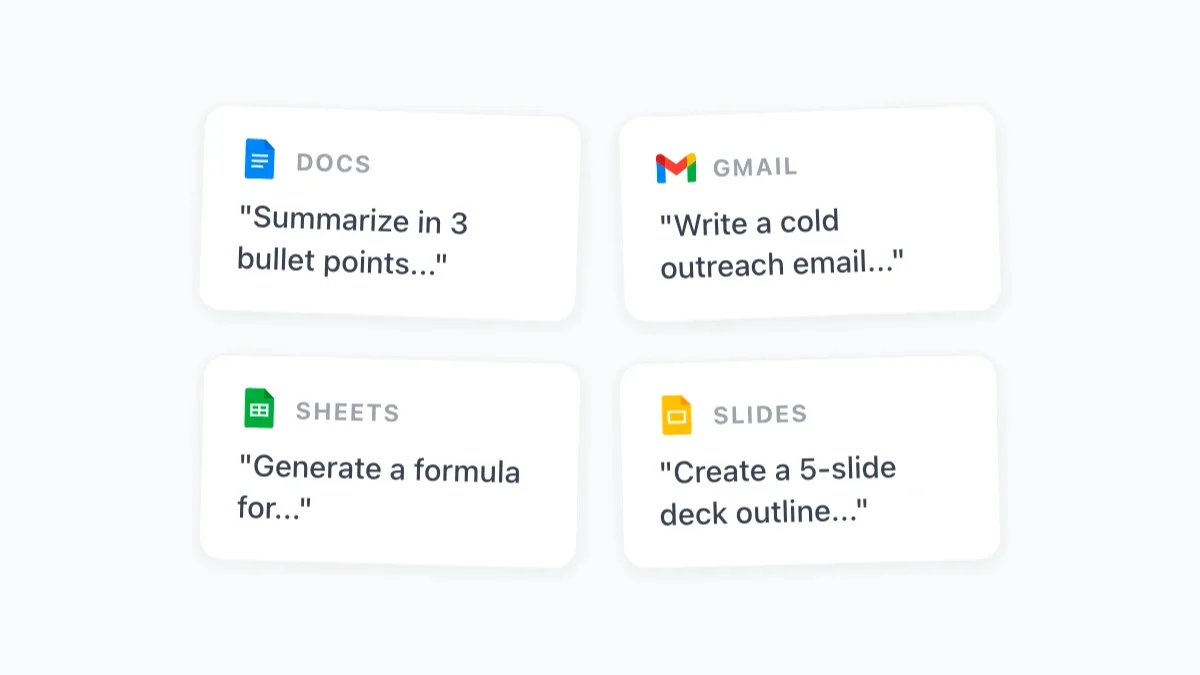
10 AI Productivity Hacks for Google Workspace That Will Save You Hours Every Week
10 practical AI productivity hacks for Google Workspace — from reusable prompt libraries to batch data processing. Each hack includes a specific prompt and step-by-step instructions.

Most people use Google Workspace the same way they did five years ago: type, copy, paste, send. The apps are familiar, the workflows feel settled, and there’s no obvious reason to change. That comfort is exactly what makes AI productivity tips for Google Workspace so valuable — you don’t have to rebuild your workflow from scratch. You just layer AI on top of what you already do, and the time savings start immediately.
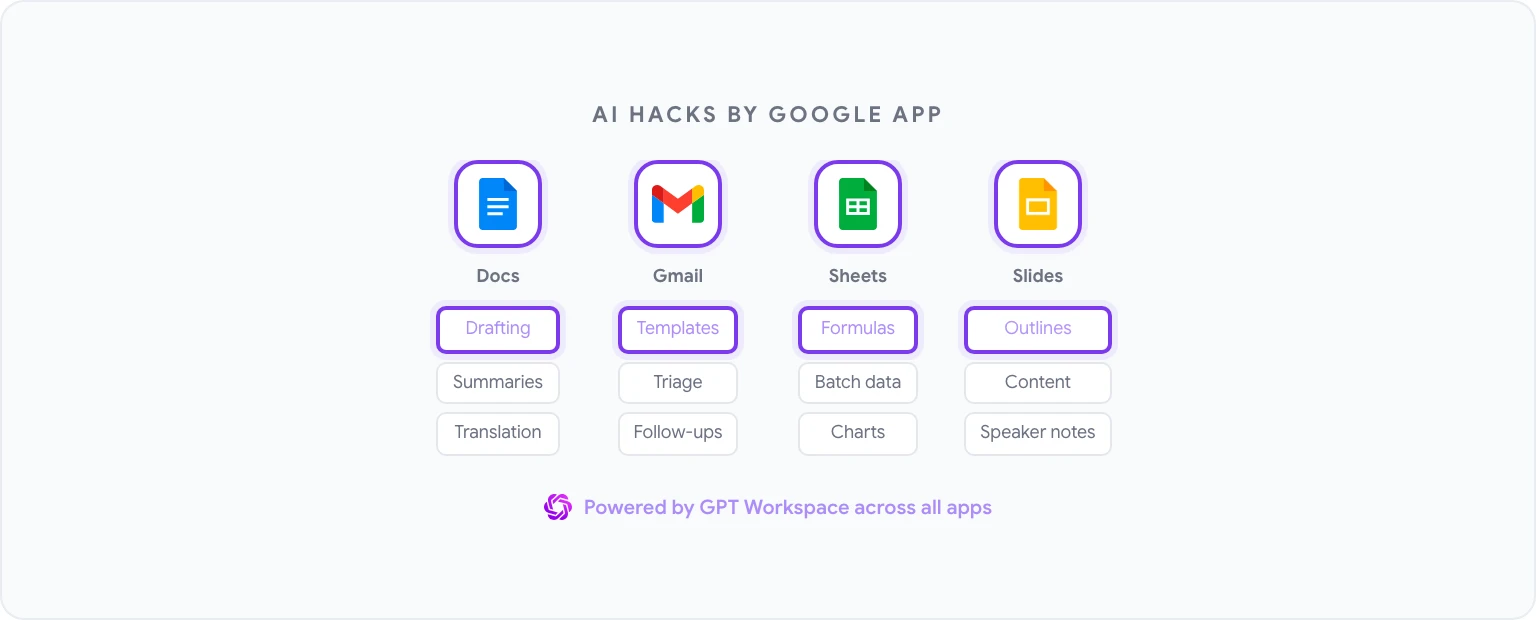
These ten hacks are the ones that consistently deliver the biggest return. Each one works with GPT Workspace, a Chrome extension and Google Workspace Add-on that puts AI directly inside Docs, Sheets, Slides, and Gmail. No tab switching, no copy-pasting — the AI works where your content already lives.
Why These Hacks Work Across All Google Apps
The pattern behind each hack is the same: replace a manual, repetitive step with an AI prompt that produces a usable first output in seconds. You still review and refine — that part matters — but the blank-page problem disappears, and the cognitive load of formatting, structuring, and wording routine content drops dramatically.
The hacks below span all four major Google apps. Some will immediately fit your daily work; others might be occasional tools you reach for when a specific task comes up. By the end, you’ll have a clear picture of where AI can absorb the most friction in your workflow.
Hack #1: Build a Reusable Prompt Library
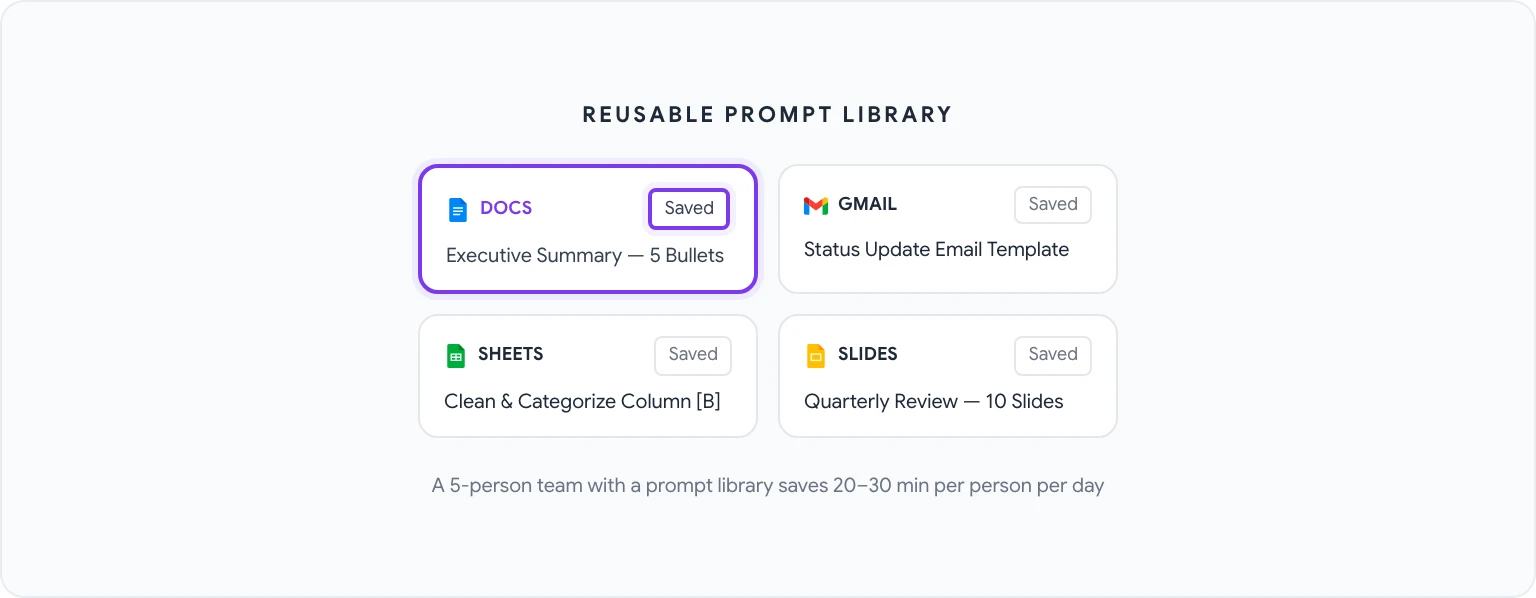
The single highest-leverage thing you can do is stop writing prompts from scratch every time. Most professionals use the same 10–20 types of prompts repeatedly — drafting executive summaries, cleaning up meeting notes, writing status update emails, generating formulas — and every time they type those instructions from scratch, they’re leaving time on the table.
GPT Workspace has a built-in prompt library where you can save, organize, and share prompts across your team. The setup is a one-time investment:
- Open the GPT Workspace sidebar in any Google app.
- Navigate to the Prompt Library tab.
- Click New Prompt and give it a descriptive name (e.g., “Executive Summary — 5 Bullets”).
- Write the full prompt, using
[PLACEHOLDER]for parts that change each time. - Save it and access it from the library in one click next time.
A well-maintained prompt library used by a five-person team can save each person 20–30 minutes per day. It also ensures consistency — every executive summary from your team follows the same format, every status email hits the same structure.
Hack #2: Batch-Process Data in Sheets with One Prompt
If you’re still processing spreadsheet data row-by-row — categorizing, enriching, cleaning — you’re wasting time that AI can absorb. The key insight is that GPT Workspace can generate a single formula or Apps Script snippet that processes an entire column at once.
Here’s the prompt pattern that works:
“I have a column of customer feedback comments in column B (rows 2–500). Write a formula or Apps Script that categorizes each comment into one of these categories: Pricing, Feature Request, Bug Report, Compliment, Other. Output the category in column C.”
This is covered in more depth in how to use AI in Google Sheets, but the core principle applies broadly: describe your data, describe the transformation you want, and let the AI write the logic. You review the output and apply it — the AI does the implementation work.
Hack #3: Auto-Draft Meeting Summaries
Meeting notes are one of the most universally disliked documentation tasks. They’re important enough to require someone’s attention, but mechanical enough that doing them well feels like a waste of skilled time.
The workflow:
- Paste your raw meeting notes (or a transcript if you have one) into a Google Doc.
- Open GPT Workspace and run this prompt: “Convert these meeting notes into a structured summary with the following sections: Key Decisions, Action Items (with owner and deadline if mentioned), Open Questions, and Next Steps. Use bullet points throughout.”
- Review and edit the output — usually this takes two minutes instead of fifteen.
For recurring meetings, save this as a named prompt in your library (see Hack #1) and it becomes a single-click operation. Teams that standardize this format also make meeting notes significantly more useful, since every document follows the same structure.
Hack #4: Create Email Templates for Every Scenario
Most professionals send versions of the same 8–10 emails repeatedly: follow-ups, project status updates, request declines, introductions, onboarding welcomes. Instead of drafting each one fresh or searching through sent mail for a usable version, AI can generate a complete template library in about 30 minutes.
Start with this prompt in a Google Doc:
“Generate 5 professional email templates for the following scenarios: (1) Following up on an unanswered proposal after one week, (2) Declining a meeting request politely, (3) Asking for a deadline extension with a brief explanation, (4) Introducing two colleagues who should connect, (5) Notifying a client that a deliverable will be delayed. Each template should be 100–150 words, maintain a professional but human tone, and include [PLACEHOLDER] brackets where personalization is needed.”
You now have a template library. Save them in a Google Doc, and the next time you need one, open it, copy the relevant template into Gmail, and fill in the brackets. More on the Gmail-specific side of this in AI email writing with Gmail prompts.
Hack #5: Generate Slide Outlines in 30 Seconds
Building a presentation from scratch is a legitimate time sink — not because the slides are hard to make, but because deciding what goes on each slide, in what order, with what emphasis, requires effort that should come after the structure is settled. AI can handle the structure.
Prompt for Google Slides (via GPT Workspace):
“Create a 10-slide presentation outline for a quarterly business review. The audience is senior leadership. Include: slide title, 3-5 bullet points of content per slide, and the key message each slide should communicate. Topics to cover: Q1 performance vs. targets, key wins, challenges encountered, root cause analysis for missed targets, Q2 priorities, resource requirements.”
The output is a full outline you can turn directly into slides. If you work with this format regularly, read how to use ChatGPT in Google Docs — the same drafting workflow applies to building out slide content in detail before you move into Slides.
Hack #6: Translate Entire Documents Without Leaving Docs
If your work involves any multilingual communication — customer-facing content, partner documentation, support materials — the traditional workflow (copy to Google Translate, review, paste back) is slow and produces results that often need significant editing.
GPT Workspace handles translation with tone-awareness, not just word-for-word substitution:
- Select the text to translate, or leave nothing selected for full-document context.
- Prompt: “Translate this into [language]. Maintain the professional but approachable tone of the original. Preserve all formatting, bullet points, and headers.”
- Review the output in the sidebar, then insert or replace.
For documents with technical terminology, add a glossary to your prompt: “Use the following translations for technical terms: [term] = [translation].” This prevents the AI from improvising on specialized vocabulary.
Hack #7: Extract Key Info from Long Reports
Dense reports — analyst research, legal documents, audit findings, vendor proposals — carry important information buried in 40 pages of text. Reading them thoroughly is rarely the best use of your time. Extracting the right information quickly is.
Use this prompt on any long document:
“Read this document and extract the following: (1) Main conclusions or recommendations, (2) Any specific numbers, dates, or quantitative findings, (3) Risks or concerns mentioned, (4) Action items or next steps, (5) Any decisions that require my input or approval. Format as a structured briefing, maximum one page.”
This works especially well for reports you receive regularly but rarely need to read in full. Once you’ve built this into your workflow, you’ll likely never read an unextracted report the same way again.
Hack #8: Auto-Categorize Your Gmail Inbox
Gmail’s built-in categorization is coarse — it splits mail into Primary, Promotions, and Social, which doesn’t help you prioritize or action items. AI can apply much more useful categorization based on your actual workflow.
The approach: use GPT Workspace in Gmail to process batches of emails. Select a group of messages (paste subject lines and snippets into a Doc if needed), then prompt:
“Categorize each of these emails into one of the following buckets: Needs Reply Today, Needs Reply This Week, FYI Only, Waiting for Response, Archive. For each email, give the category and a one-sentence reason.”
This isn’t automated triage (you’re still manually initiating it), but running this process on your inbox once a day — it takes about 90 seconds — is significantly faster than reading every email to decide what to do with it.
Hack #9: Generate Charts from Raw Data
Google Sheets can generate charts, but deciding which chart type fits the data, setting it up correctly, and labeling it appropriately takes longer than it should. AI can both recommend the right chart type and generate the formula or script to build it.
Prompt:
“I have monthly revenue data for 12 months in column A (months) and column B (revenue). What’s the most effective chart type to show growth trend and any seasonal patterns? Write the steps to create it in Google Sheets, including how to format the axes and add a trendline.”
For more complex analysis — pivot tables, conditional formatting rules, multi-series charts — the same pattern works. Describe your data and your goal, and let the AI specify the implementation. The AI in Google Sheets guide has detailed examples for common analytical workflows.
Hack #10: Build AI-Powered Google Forms Workflows
Google Forms is often underutilized as a workflow tool — it collects data, but what happens next is usually manual. AI can dramatically extend its usefulness.
Two specific applications:
Auto-generate form questions from a goal: “I want to survey customers after a product onboarding call to understand: overall satisfaction, whether they achieved their stated goal, friction points they encountered, and likelihood of recommending us. Write 8–10 Google Forms questions with appropriate response formats (multiple choice, scale, open text) for each.”
Process form responses in Sheets: Once responses land in a Google Sheet, use GPT Workspace to analyze patterns: “Analyze these 50 open-text responses to the question ‘What was most confusing about onboarding?’ Group them into themes, count occurrences, and rank by frequency.”
This closes the loop between data collection and insight without requiring a data analyst.
How to Combine These Hacks into a Daily Routine
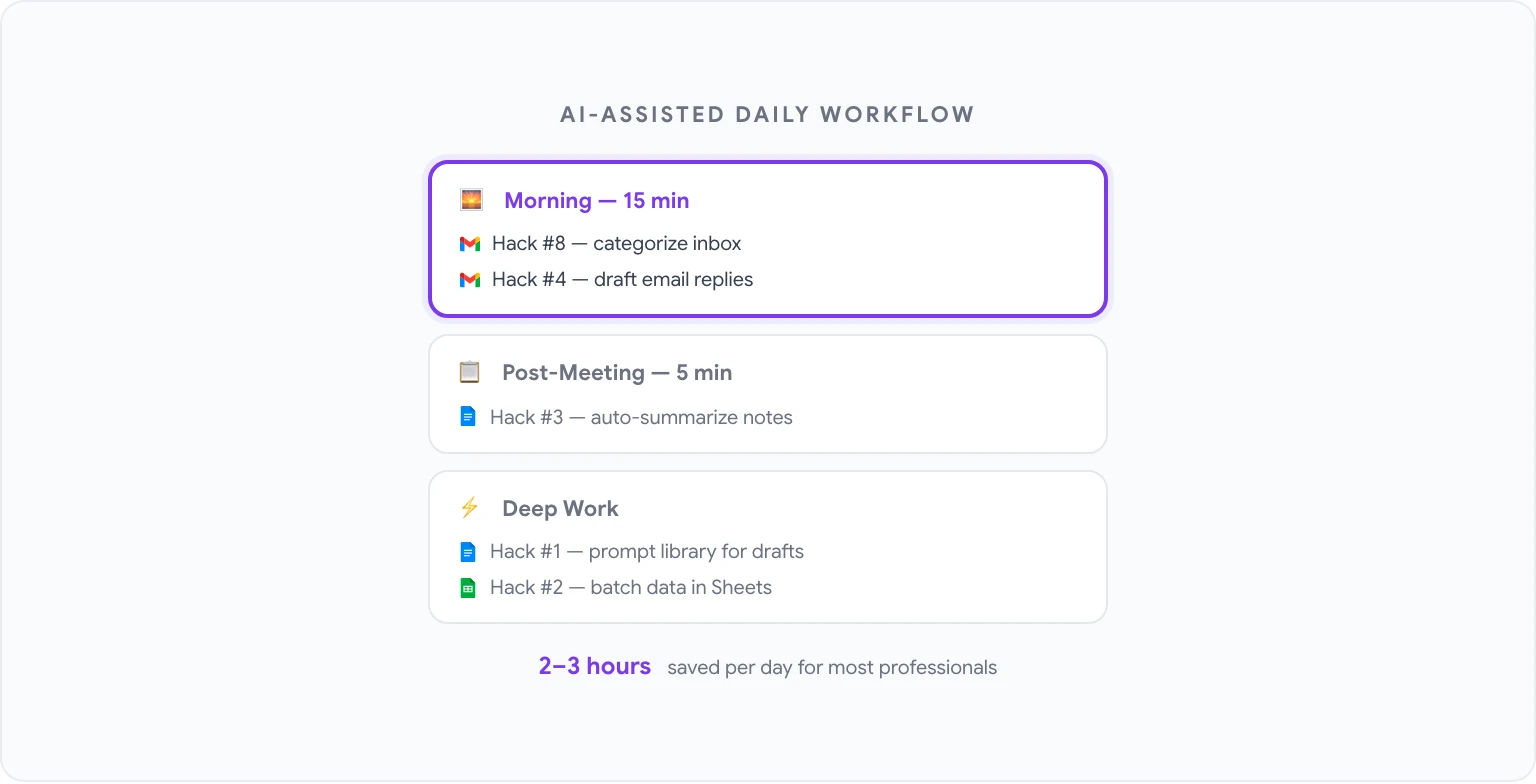
The full value of these hacks comes from building them into a consistent daily workflow rather than reaching for them occasionally. Here’s what a structured AI-assisted workday looks like in practice:
Morning (15 minutes):
- Run Hack #8: categorize your overnight inbox. Flag what needs a response today.
- Use Hack #4 templates to draft any required email replies.
During meetings:
- Take rough notes as you normally would.
Post-meeting (5 minutes):
- Run Hack #3: convert notes to a structured summary and send it.
Deep work blocks:
- Use Hack #1 (prompt library) for any drafting or editing task in Docs.
- Use Hack #2 when you have data to process in Sheets.
Weekly:
- Run Hack #7 on any accumulated reports or documents.
- Use Hack #5 to outline any presentations you need to build.
The total time investment to get all ten hacks running is a few hours upfront — most of it building your prompt library. The ongoing time savings, for most professionals, are measured in hours per week rather than minutes.
For a complete library of prompts to use across every Google app, see 50 best ChatGPT prompts for Google Workspace. And if you’re ready to put all of this into practice, GPT Workspace is where to start — it’s free to try, with no configuration required beyond installing the extension.