How to Automate Repetitive Google Workspace Tasks with AI (No Coding Required)
A practical guide to automating routine tasks in Google Workspace with AI — data processing in Sheets, report generation, email templates, and slide decks. No coding skills needed.

There’s a version of your workweek that looks like this: you open a spreadsheet, manually pull data from three sources, build a report, paste it into a document, format it, and email it — the same way you did last week, and the week before. You know it could be automated. You just don’t know how, or you assume it requires coding skills you don’t have.
Automating Google Workspace tasks with AI doesn’t require coding. It requires the right tools and a clear understanding of what AI can and can’t realistically handle. This guide covers both. By the end, you’ll have five concrete automations you can set up in an afternoon, a repeatable workflow for building more, and an honest picture of where AI-based automation has limits.
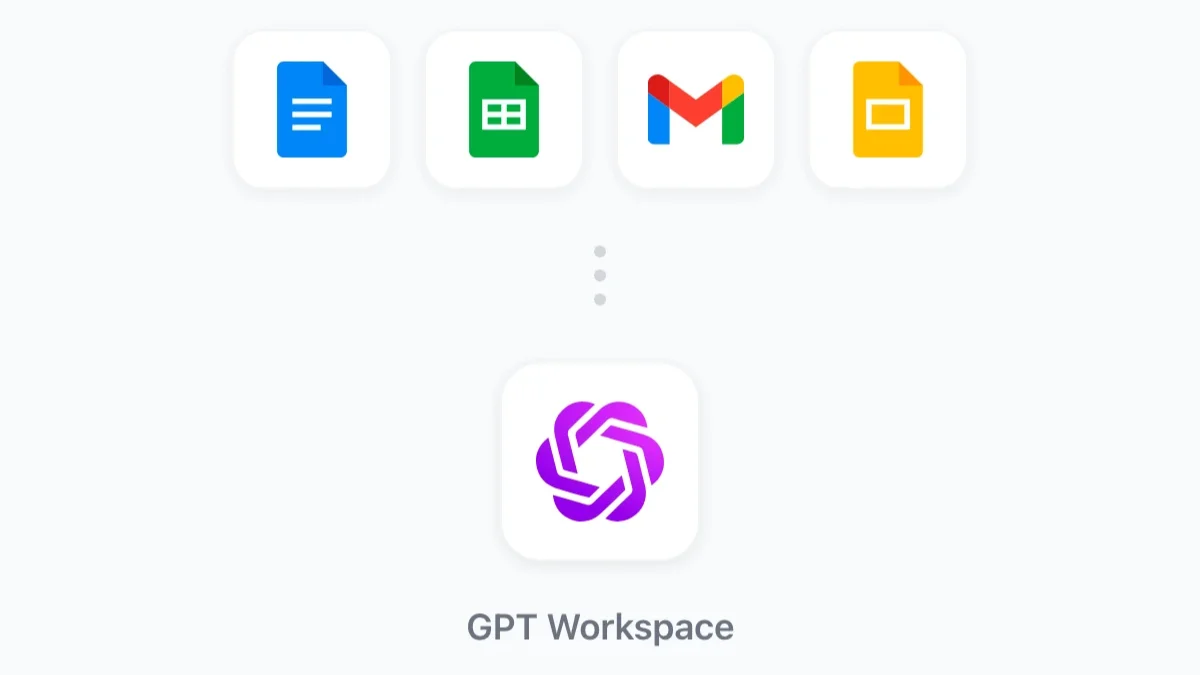
All the automations here use GPT Workspace, the Chrome extension and Add-on that puts AI directly inside Google Docs, Sheets, Slides, and Gmail — and standard Google features like Apps Script, which is accessible to anyone with a Google account.
What Can You Realistically Automate with AI?
Before getting into specifics, it’s worth being clear about what “automation” means in this context. There are two distinct approaches:
Prompt-based automation means using AI to generate output — reports, summaries, templates, formulas — that you then apply manually. This isn’t fully automated in the traditional sense, but it reduces a 45-minute task to a 3-minute one. Most of the workflows in this guide fall here.
Script-based automation means using AI to write Apps Script code that runs on a schedule or trigger, requiring no further manual input. This is genuinely automated but involves a small amount of setup and occasional maintenance.
Both approaches are accessible without coding knowledge. The difference is in setup time and the level of ongoing involvement required.
Tasks that automate well with AI in Google Workspace:
- Generating structured reports from raw data
- Drafting email replies based on templates
- Creating presentations from written outlines
- Cleaning and standardizing spreadsheet data
- Summarizing documents and email threads
- Writing formulas and scripts to automate data processing
Tasks that don’t automate well:
- Decisions requiring human judgment or context
- Tasks involving real-time external data (unless connected via API)
- Workflows with unpredictable inputs that can’t be templated
With that baseline set, here are five automations worth building first.
Automation #1: Auto-Generate Weekly Reports from Sheets
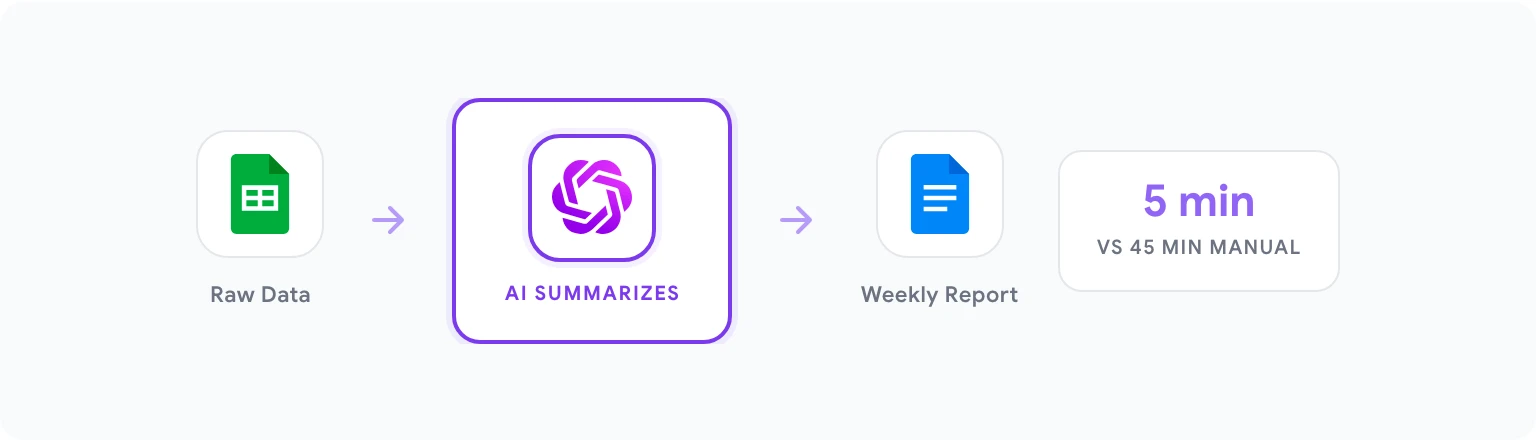
Weekly reports are one of the most universal time sinks in knowledge work. Someone has to collect data, summarize it, identify key trends, write commentary, and format it into something readable — every single week. AI can handle most of this.
The setup:
Your source data lives in Google Sheets — sales numbers, project metrics, website traffic, whatever you track weekly. The goal is to produce a structured narrative report in Google Docs without manually writing it.
Step 1: Prepare your data. Make sure your Sheets data is clean and labeled. Column headers should be descriptive (not “Column A”). The data range should be consistent week over week. If it isn’t, use a named range — this makes prompts more reliable.
Step 2: Generate the formula layer. In a summary tab, use AI to generate the formulas you need. Open the GPT Workspace sidebar and prompt:
“I have weekly sales data with these columns: [Date, Rep Name, Region, Product, Revenue, Units Sold]. Write formulas for a summary tab that calculate: total revenue this week, revenue by region, top 3 performing reps by revenue, and week-over-week revenue change. Use named range ‘WeeklyData’ as the source.”
Apply the formulas to your summary tab. This layer runs automatically whenever data is added.
Step 3: Generate the written report. Each Monday, open a new Google Doc and open GPT Workspace. Paste your summary numbers and run:
“Here are this week’s performance metrics: [paste summary numbers]. Write a weekly report with the following sections: Executive Summary (3 sentences), Key Wins (3 bullets), Areas of Concern (2–3 bullets with suggested next steps), and Outlook for next week. Audience: sales leadership. Tone: direct and data-driven.”
Total time: about 5 minutes, down from 30–45 minutes of manual writing. For more on the Sheets-side of this, using AI in Google Sheets covers formula generation in depth.
Automation #2: Batch-Process Email Replies in Gmail
If you receive a high volume of similar emails — customer inquiries, support requests, internal status questions — you’re likely spending significant time drafting replies that follow the same structure every time. AI-powered email templates change this.
The setup:
Step 1: Identify your repeat email types. Look at your sent mail from the last two weeks. Find the 5–6 email types that appear most frequently. Common ones: meeting request responses, project status updates, information request replies, onboarding responses, declining a pitch.
Step 2: Build template prompts. For each type, write a prompt that generates a complete reply when you paste the incoming email as context. Example:
“I received this email: [PASTE EMAIL]. Write a professional reply that: acknowledges their request, provides the key information they need [CUSTOMIZE: add specific info], and closes with a clear next step. Tone: helpful and direct. Length: 100–150 words.”
Step 3: Save to your prompt library. In GPT Workspace, save each template prompt with a descriptive name: “Reply — Meeting Request,” “Reply — Status Update Request,” “Reply — Information Inquiry.” They’re now one-click accessible from your Gmail compose window.
The workflow: When a repeat email arrives, open GPT Workspace in Gmail, select your template prompt, paste the incoming email text into the placeholder, generate, review, and send. The average reply time drops from 5–10 minutes of composing to under 2 minutes.
For cold outreach and more complex email scenarios, see AI email writing with Gmail prompts.
Automation #3: Create Slide Decks from a Doc Outline
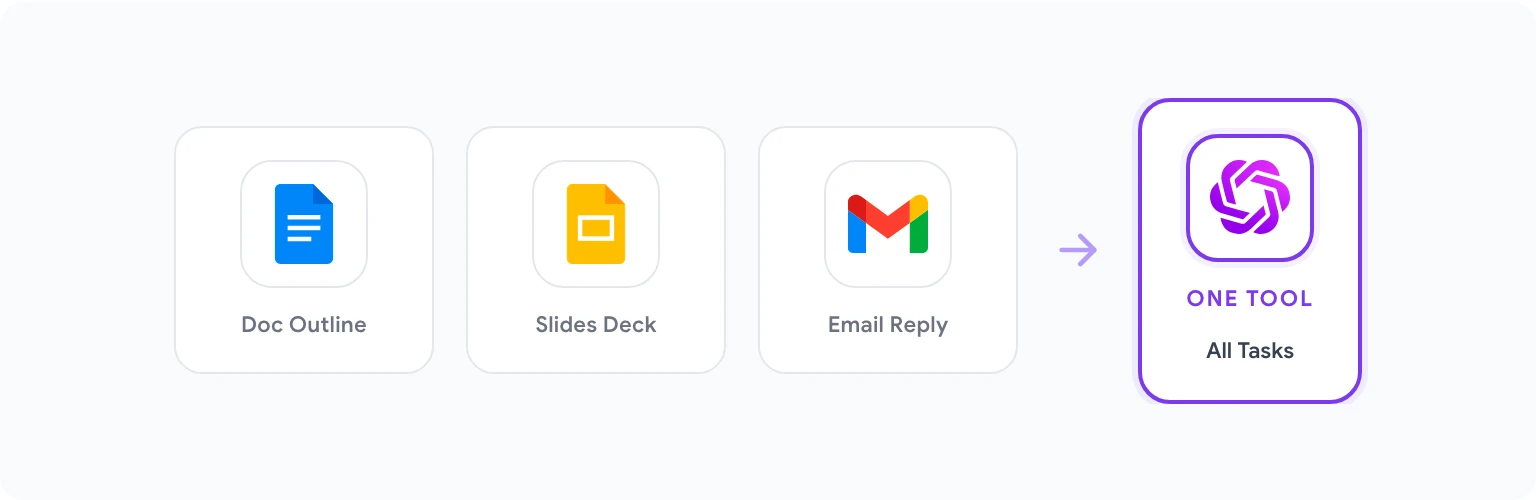
Building presentations is slow because it involves two distinct tasks that most people conflate: deciding what to say (content strategy) and making slides (visual execution). AI can handle the content strategy layer almost entirely, which is where most of the time goes.
The setup:
Step 1: Write a rough outline in Google Docs. This doesn’t need to be polished. Just list the key points you want to cover, in order. This takes 5–10 minutes.
Step 2: Run the outline-to-structure prompt. In GPT Workspace, prompt:
“Convert this rough outline into a detailed presentation structure. For each slide include: (1) slide title, (2) 3–5 content bullets, (3) the one key message this slide should communicate, (4) speaker notes of 60–80 words. The presentation is for [audience] and the goal is to [inform/persuade/update]. [Paste outline]”
Step 3: Apply to Slides. Copy the structured content into Google Slides — one section per slide. The titles and bullets go directly on the slide; the speaker notes go in the notes panel.
This approach produces a complete presentation structure in about 20 minutes, compared to 2–3 hours of building from scratch. The AI handles content architecture; you handle visual polish and any context that requires human judgment.
For more on slide content workflows, the AI productivity hacks for Google Workspace post covers Slides specifically in Hack #5.
Automation #4: Clean and Standardize Spreadsheet Data
Dirty data is one of the most common productivity killers in Sheets-heavy workflows. Inconsistent formatting, extra spaces, mixed capitalization, incorrect date formats, and duplicate entries all cause downstream problems in formulas, pivot tables, and reports. Cleaning data manually is tedious and error-prone.
AI can generate the formulas and scripts to clean data at scale — often in a single prompt.
Common data cleaning tasks and how to automate them:
Inconsistent company names: “I have company names in column B with inconsistent formatting (mixed caps, extra spaces, some with ‘Inc.’, ‘LLC’, ‘Ltd.’ and some without). Write a Google Sheets formula to standardize all values to Title Case with one space between words. Output in column C.”
Inconsistent date formats: “My dates in column D are a mix of formats: MM/DD/YYYY, YYYY-MM-DD, and written out like ‘March 5, 2026’. Write a formula to convert all of them to a consistent YYYY-MM-DD format in column E.”
Remove duplicates by email: “Write a formula to identify the first occurrence of each email address in column C (rows 2–500) and mark duplicates in column D with ‘Duplicate’ or leave blank for unique values.”
Batch script for full cleanup: For more complex scenarios, prompt GPT Workspace to write an Apps Script:
“Write a Google Apps Script that processes Sheet1 and: (1) trims whitespace from all cells in columns A–E, (2) converts column B (company names) to Title Case, (3) flags rows where column C (email) is empty by highlighting them yellow. Add a menu item ‘Run Cleanup’ to trigger the script.”
Then open Extensions > Apps Script, paste the code, save it, and run it once to grant permissions. After that, the menu item is available whenever you need it.
Automation #5: Generate Meeting Agendas and Summaries
Two of the most recurring documents in any knowledge worker’s week are meeting agendas and post-meeting summaries. Both are highly templatable, which means both are good candidates for AI automation.
Meeting agenda generation:
Before any recurring meeting, use this prompt pattern:
“Generate a meeting agenda for a [meeting type: e.g., weekly team standup / project kickoff / quarterly review] meeting. Duration: [X minutes]. Attendees: [roles, not names]. Goals for this meeting: [describe 2–3 outcomes]. Include time allocations for each agenda item and a notes section for each.”
For recurring meetings, save this as a named prompt. Each week, run it with any updated context (new topics, changed participants) and you have a ready agenda in under a minute.
Post-meeting summary:
Take notes in whatever format is natural during the meeting — they don’t need to be organized. Immediately after the meeting:
“Convert these rough meeting notes into a structured summary. Include: (1) Meeting objective, (2) Attendees and roles, (3) Key decisions made (with brief rationale if mentioned), (4) Action items (owner, task, deadline), (5) Open questions requiring follow-up, (6) Next meeting date/topic if agreed. Notes: [paste notes]”
The output is ready to share with the team within 5 minutes of the meeting ending — while the context is still fresh.
Setting Up a Repeatable AI Workflow
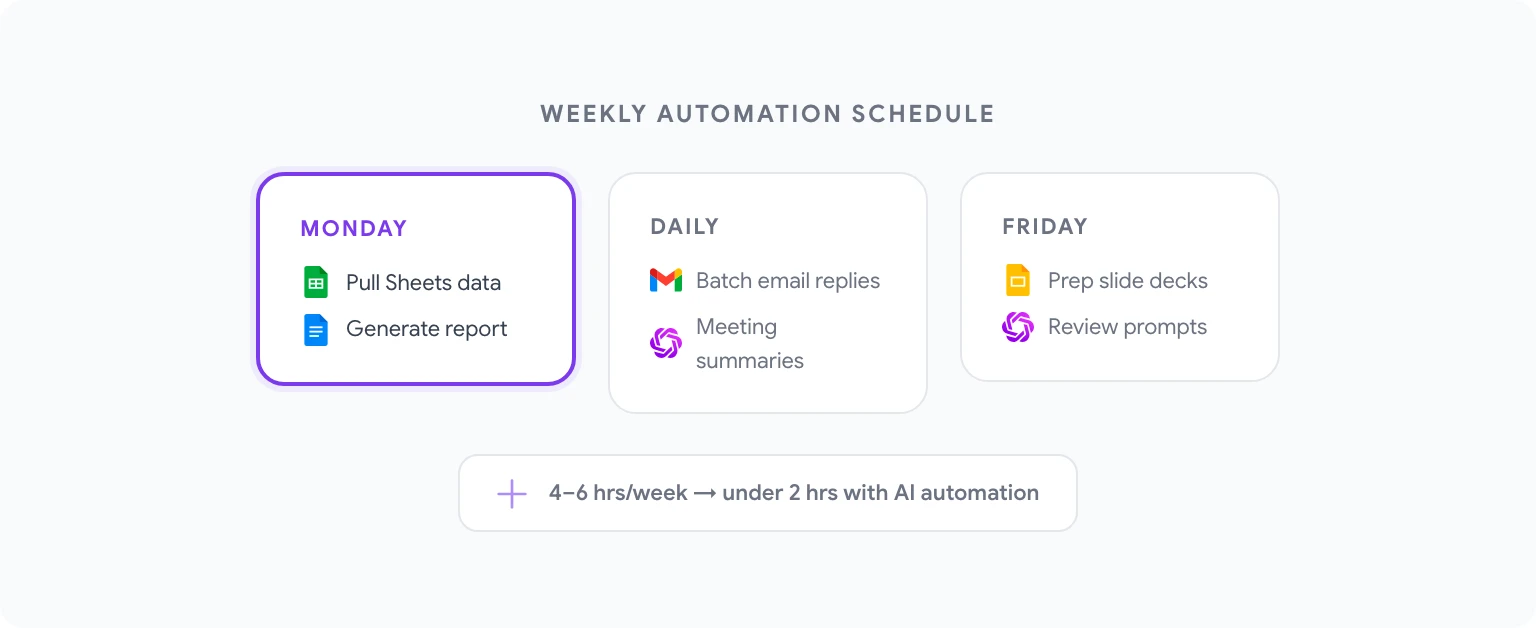
Individual automations are valuable, but the compounding benefit comes from building a consistent daily and weekly workflow. Here’s a framework for doing that:
Daily (20 minutes or less):
- Morning: Run your email triage and template-reply workflow. Batch your inbox into response categories.
- After meetings: Run the meeting summary prompt immediately.
Weekly (1–2 hours total, down from 4–6):
- Monday: Pull your Sheets summary numbers, run the report generation prompt, share the report.
- Friday: Review any upcoming presentations — run the slide generation workflow for anything due the following week.
Monthly (one-time setup investment, ongoing payoff):
- Audit your prompt library. What prompts are you using most? Which ones need refinement?
- Add one new automation: identify a task you’re still doing manually and build a prompt-based workflow for it.
- Share the prompt library update with your team.
The key to making this stick is integration with your existing calendar and task structure. Automations that require you to remember to use them get forgotten. Automations tied to recurring events — Monday morning, post-meeting, end of week — become habits.
Common Mistakes and How to Avoid Them
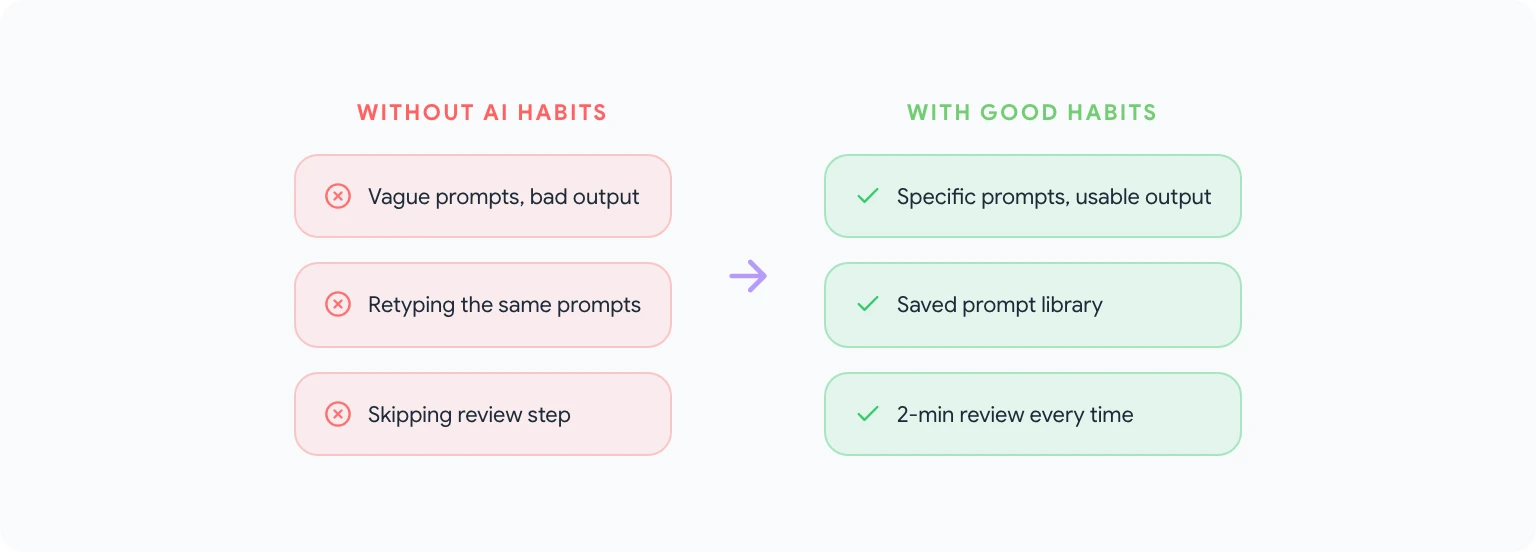
Over-prompting without reviewing. AI output is a first draft, not a finished product. Teams that skip the review step end up sending reports with incorrect data interpretations or emails with wrong placeholders. Build review into every workflow — it should take 2–3 minutes, not 20.
Rebuilding prompts from scratch. If you’re typing the same prompt repeatedly, you’re losing the efficiency gains. Anything you use more than three times belongs in your prompt library.
Using vague prompts for complex tasks. “Write a report about last week” produces generic output. “Write a weekly sales report covering [specific metrics] for [specific audience] in [specific format]” produces something usable. Invest 2 minutes in a clear prompt to save 30 minutes of editing.
Not testing scripts before relying on them. Apps Script automations should always be tested on a small data range (5–10 rows) before running on your full dataset. This prevents accidental overwrites.
Treating AI as infallible for data analysis. AI is excellent at generating formulas and scripts, but you need to verify the logic, especially for financial calculations or anything compliance-related. Spot-check outputs against manual calculations until you’ve confirmed accuracy.
FAQ
Do I need a paid plan to use these automations? Most of what’s described here works on the free tier of GPT Workspace. Script generation and more complex prompts work better with GPT-4o, which is available on paid plans. For teams, the shared prompt library is a paid feature.
Will AI replace my manual spreadsheet work entirely? No — AI handles the implementation layer (formulas, scripts, formatting) very well. The judgment layer — deciding what to measure, what counts as a problem, what to recommend — still requires human expertise. Think of AI as a fast, capable colleague who implements your decisions rather than making them for you.
What if the generated Apps Script doesn’t work? Paste the error message back into GPT Workspace with the prompt: “This script returned the following error: [error message]. Diagnose the problem and provide a corrected version.” In most cases, this resolves the issue in one iteration.
Can I use these automations on a shared company Google account? Yes, as long as you have permission to install extensions and run Apps Scripts in your organization’s Google Workspace environment. Some organizations restrict these by default — check with your IT administrator.
How do I keep my prompts up to date as my workflows change? Schedule a monthly 20-minute review. Go through your prompt library, identify anything that’s become outdated, update the templates, and delete ones you no longer use. This keeps the library useful rather than cluttered.
Is this secure to use with confidential business data? GPT Workspace processes prompts via API calls to the underlying AI models (OpenAI, Anthropic). Prompt data is not stored by GPT Workspace. Review the data processing agreements of the specific AI model you’re using if you’re handling sensitive or regulated data.
For the full collection of prompts that power these workflows, see 50 best ChatGPT prompts for Google Workspace. And for the complete picture of what AI can do across every Google app, GPT Workspace is the place to start.