GPT Workspace for Content Creators and Marketers: Scale Your Output with AI
How marketers and content creators use GPT Workspace to draft blog posts, manage content calendars in Sheets, create pitch decks, and automate email campaigns — all inside Google Workspace.

Content marketing has always been a volume game with a quality constraint: you need enough content to be visible, and you need it to be good enough that people actually read it. For most content teams — especially lean ones — those two requirements have been in constant tension. Publishing frequency suffered because quality drafting took time; quality suffered because publishing frequency demands were too high. AI for content creators in Google Workspace resolves that tension in 2026 more cleanly than any previous solution.
The key shift isn’t that AI writes your content. It’s that AI handles the parts that don’t require your expertise — the first draft, the structural scaffolding, the reformatting between channels — so your actual thinking and voice can go into every piece rather than being rationed across fewer of them.
This guide covers the practical workflows: researching and outlining, drafting long-form content, building and managing content calendars in Sheets, writing social and ad copy, pitching clients, running email campaigns, and scaling output without scaling headcount.
Why Content Teams Are Adopting AI in 2026
The adoption curve in content has moved past early adopters. What changed is the quality floor: early AI writing tools produced text that required as much editing as writing from scratch. Current models — GPT-4o, Claude 3.5 Sonnet — produce first drafts that are genuinely close to publishable for many content types, especially structured formats like how-to articles, product explainers, listicles, and email campaigns.
The second driver is tool integration. The reason most content teams now work with AI inside Google Workspace rather than standalone tools is friction. A content manager who lives in Google Docs, Sheets, and Gmail doesn’t want to copy-paste between a separate AI interface and their existing workflow. GPT Workspace puts the AI sidebar directly inside those apps — you draft in Docs, you manage your calendar in Sheets, you run your campaigns in Gmail, and the AI is there alongside you in all three.
The practical effect: a content marketer who previously published 4 articles per month can publish 8–10 with the same effort level. A one-person marketing team can produce output that reads like a four-person team. An agency can take on more clients without proportional headcount growth.
Researching and Outlining Blog Posts
The outline is the most underrated step in content creation. A strong outline means the draft almost writes itself; a weak one means constant backtracking and restructuring that wastes far more time than the outline would have taken. AI is particularly good at outline generation because outlines are structural and logical rather than creative — exactly the kind of task where AI performs consistently well.
Workflow in Google Docs:
- Open a new document and describe the article topic, target audience, primary keyword, and any specific angles you want to cover.
- Open the GPT Workspace sidebar via Extensions > GPT for Sheets, Docs, Slides.
- Prompt: “Create a detailed outline for a 2,000-word blog post targeting [keyword]. Audience: [description]. Include an intro hook, 5–7 H2 sections with 2–3 bullet points under each, and a conclusion structure. The angle should be [practical/contrarian/data-driven/etc.].”
- Review the outline, rearrange or remove sections, then expand section by section.
For research, use AI to surface angles and key points you’d otherwise miss: “What are the most common questions people have about [topic]? What misconceptions should this article address? What statistics or studies are frequently cited in this space?”
AI won’t replace primary research or give you current data — its knowledge has a cutoff, and you’ll want to verify any statistics before publishing. But it surfaces the landscape of a topic quickly, which is where most research time goes.
You can use ChatGPT in Google Docs to iterate on your outline as many times as needed before committing to a draft, without breaking your workflow.
Drafting Long-Form Content in Docs
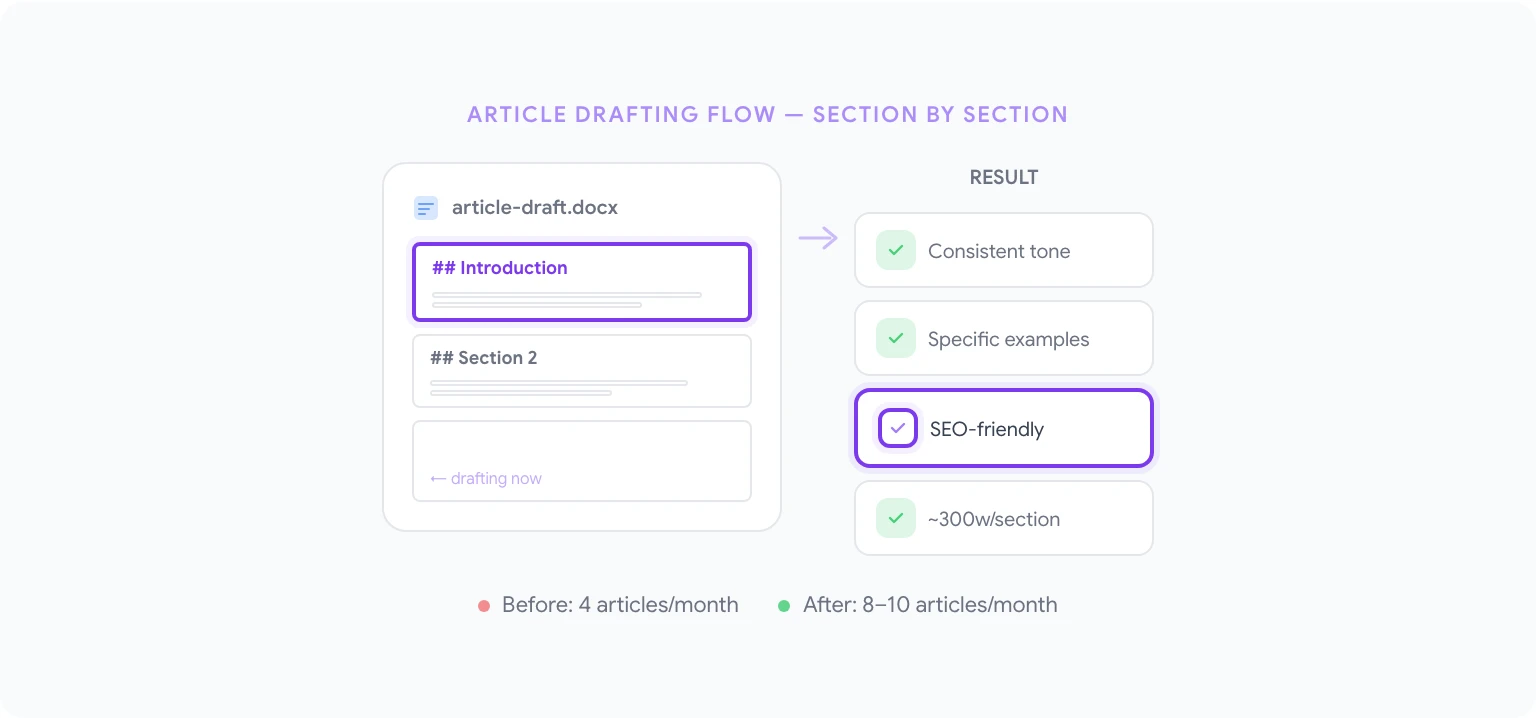
Once the outline is solid, AI can draft each section in sequence. The key is not asking for the whole article at once — that approach produces bloated, generic text that takes more editing than just writing it yourself. Section-by-section prompting produces tighter, more consistent drafts.
For each H2 section:
- Highlight the section heading and bullet points from your outline.
- Prompt: “Write this section in approximately 300 words. Tone: [expert but accessible/conversational/formal]. Avoid passive voice. Include a specific example or tactical detail, not just general statements.”
- Review, adjust, move on to the next section.
The AI maintains tone and context within a session, so later sections stay consistent with earlier ones. If a section drifts, select it and prompt: “Rewrite this section to match the tone of the introduction I pasted below: [paste intro].”
For SEO-optimized content, include keyword guidance in your section prompts: “Write this section. Naturally include the phrase ‘[target keyword]’ once without forcing it. Don’t keyword-stuff.”
After the full draft is assembled, use AI for the final pass: “Review this article draft for: consistency of tone throughout, any sections that feel too generic or could use a more specific example, and any claims that should have a citation note. Return a list of suggested edits.”
Building Content Calendars in Sheets
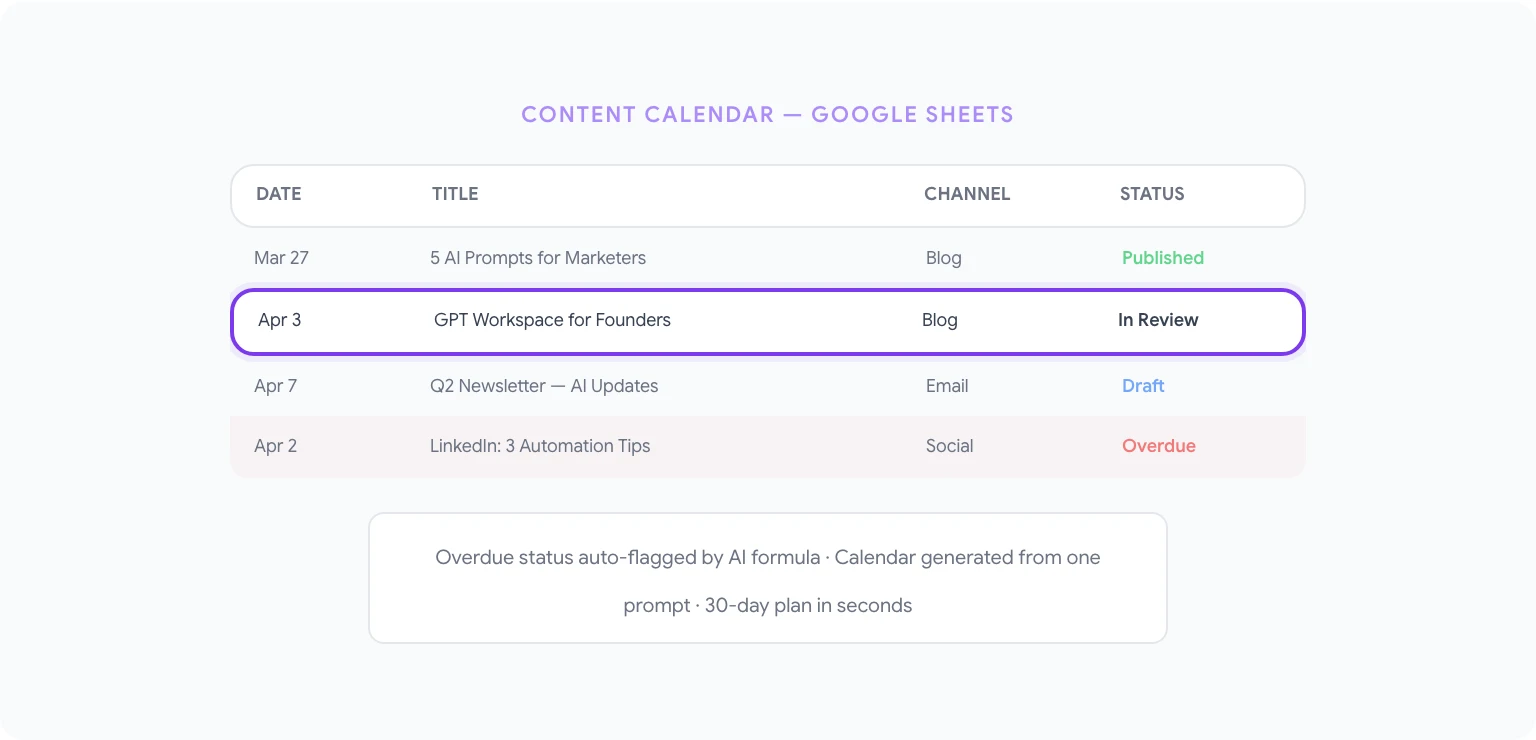
Content calendars are planning tools that almost everyone acknowledges are essential and almost no one keeps updated after the first two weeks. The maintenance burden — updating statuses, tracking deadlines, noting what’s been published, flagging what’s overdue — is tedious enough to slip.
AI in Sheets can handle most of that maintenance burden automatically with the right formulas. Using AI in Google Sheets:
- “Write a formula that automatically marks a row’s status as ‘Overdue’ if the publish date in column C is more than 3 days in the past and the status in column D is not ‘Published’.”
- “Create a formula that counts how many pieces of content are in ‘Draft’ status in column D, grouped by content type in column B.”
- “Write a QUERY formula that returns all rows where the assigned writer in column E is ‘Jamie’ and the status in column D is ‘In Review’, sorted by publish date ascending.”
- “Generate a formula that calculates the average days from ‘Brief Assigned’ to ‘Published’ using dates in columns F and G, excluding rows where column D is not ‘Published’.”
For generating the content calendar itself, AI handles the ideation: “Create a 30-day content calendar for a B2B SaaS company selling project management software. Include 12 blog post ideas, 20 social post ideas, and 4 email newsletter topics. Format as a table with columns: date, channel, title/topic, content type, funnel stage.” Paste the output directly into Sheets and use it as your starting structure.
Writing Social Media Captions and Ad Copy
Social content and paid copy share a constraint that separates them from long-form writing: every word has to earn its place. The format rewards precision and punish padding. AI is unusually good at this because it can generate many variations quickly, giving you options to select from rather than forcing you to edit a single draft.
For social captions:
- “Write 5 LinkedIn post options for this blog post: [paste title and first paragraph]. Each option should use a different hook: a question, a surprising statistic, a counterintuitive statement, a direct takeaway, and a short story opener. Include 2–3 relevant hashtag suggestions per post.”
- “Create 3 Twitter/X thread openers for this topic: [topic]. Each should be under 280 characters and compel a click or retweet.”
- “Write an Instagram caption for a case study result: a customer reduced their [metric] by [%] using our product. Include a human angle, a soft CTA, and appropriate emojis for a B2B audience.”
For paid ad copy:
- “Write 3 Google Search ad headlines (max 30 characters each) and 2 description lines (max 90 characters each) for a campaign targeting ‘[keyword]’. Focus on [benefit].”
- “Create 5 Facebook ad copy variations for this product: [description]. Target audience: [description]. Include a hook, a pain point, a benefit statement, and a CTA button label. Test different emotional angles: urgency, FOMO, aspiration, problem-agitation-solution.”
For agencies managing content across multiple brands, save tone-specific prompt templates per client in GPT Workspace’s prompt library. Brand A’s voice is professional and direct; Brand B’s is playful and casual. Each client gets their own template set, and any team member can produce on-brand content without a style guide reference call.
Creating Pitch Decks for Clients
Agency and freelance content work runs on pitches. A well-constructed pitch deck wins projects; a generic one loses them even when the work would have been great. The structure of a strong pitch is learnable, but building each one from scratch is time-consuming.
In Google Slides with GPT Workspace:
- “Create content for a 12-slide content marketing proposal for [prospect company]. Slides: title, executive summary, their current content challenges (based on these notes: [paste notes]), our proposed approach, content strategy overview, sample deliverables, team bios (placeholder), case study from [similar client], timeline, investment, why us, next steps.”
- “Write the narrative for our ‘Why Us’ slide. We’re a 6-person agency specializing in B2B SaaS content. Key differentiators: deep technical understanding, SEO-first approach, proven track record with [client types]. Under 80 words, punchy and specific.”
- “Review this proposal draft for: gaps in logic, anything that sounds generic or template-y, and any sections where we make claims without supporting evidence. Suggest specific improvements.”
For recurring pitch types — SEO content retainers, social media management, content audits — build a base template per service type. Each new pitch starts from that template and gets customized with AI assistance for the specific prospect.
Drafting Newsletter Campaigns in Gmail
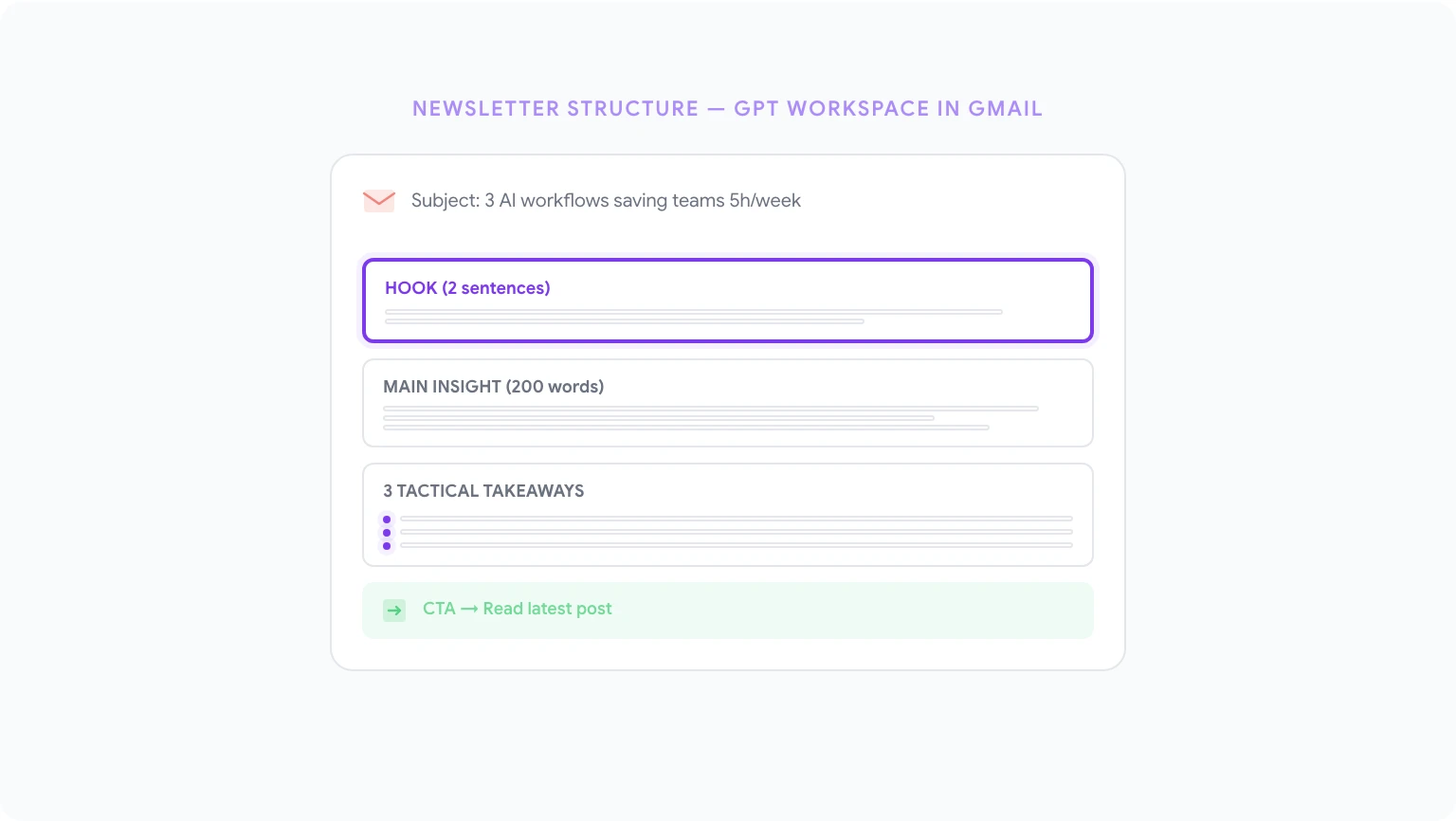
Email newsletters are one of the highest-ROI content channels for B2B and creator businesses, and one of the most consistently underpromoted because they take time to write well. A good newsletter isn’t just a blog post excerpt — it has its own voice, structure, and reason to open.
GPT Workspace in Gmail handles the drafting:
- “Write a weekly newsletter email for a B2B marketing audience. Topic: [topic]. Structure: a 2-sentence hook, a main insight section (200 words), 3 tactical takeaways in bullet format, a ‘worth reading’ link recommendation with a 1-sentence annotation, and a 1-line CTA to our latest blog post. Conversational, smart tone.”
- “Write 5 subject line options for this newsletter. Mix approaches: curiosity gap, direct benefit, question, number-led, personalization hook.”
- “Review this newsletter draft for: subject line strength, whether the hook earns the read, any places where the energy drops, and whether the CTAs feel natural or forced.”
For product update emails and campaign announcements: “Write a product announcement email for [feature/product]. Lead with the customer benefit, not the feature name. Include a brief ‘what it means for you’ section, a screenshot placeholder, and a single CTA to learn more or try it.”
For best practices on email writing with AI across all campaign types, see AI email writing prompts for Gmail — that guide covers the full range from cold outreach to nurture sequences.
Content Marketing Prompts
These prompts cover the full content creation workflow:
- “Generate 20 blog post ideas for a [industry] company targeting [ICP]. Mix formats: how-to, listicle, thought leadership, case study, comparison. Include a working title and one-line angle for each.”
- “Write a meta description for this blog post: [paste title and first paragraph]. Under 160 characters, include the primary keyword ‘[keyword]’, and make it compelling enough to earn the click.”
- “Create a content brief for a 1,500-word article on [topic]. Include: target keyword, secondary keywords, recommended structure, audience intent, key points to cover, and 3 competitors to analyze.”
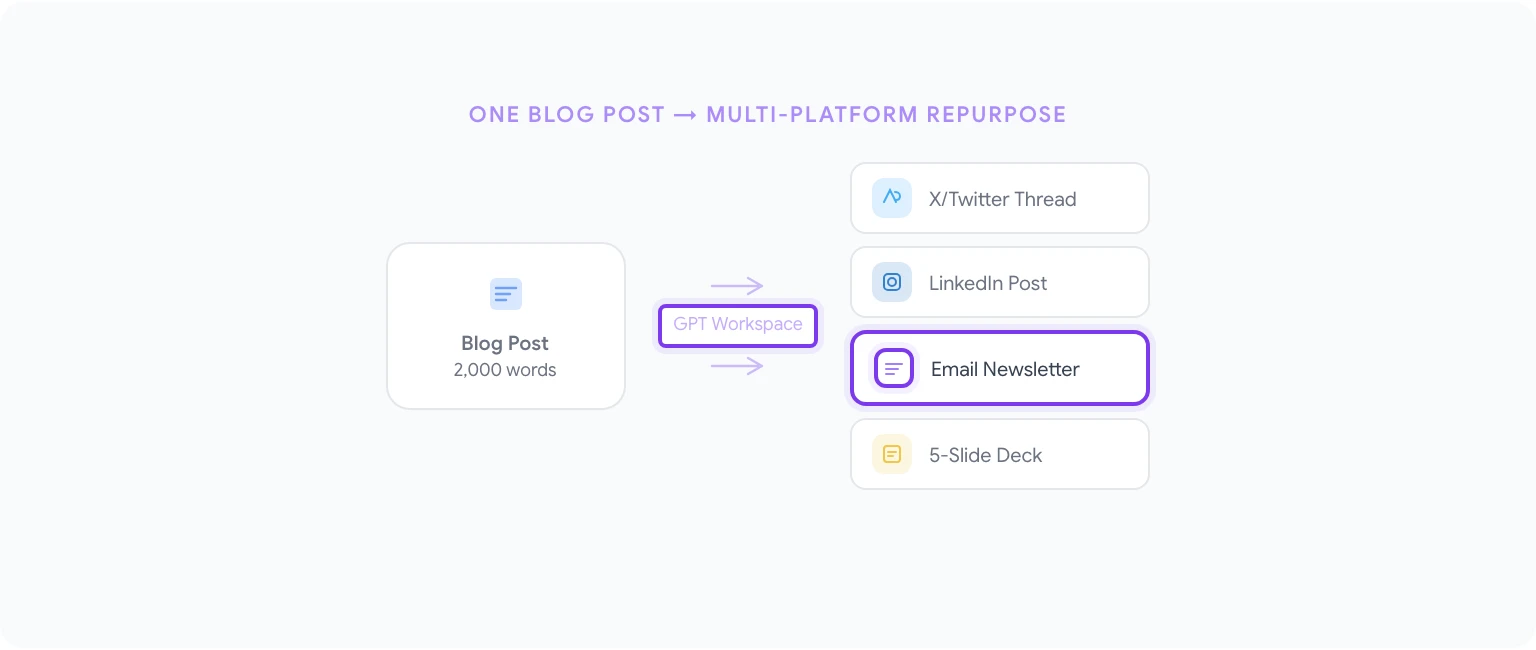
- “Repurpose this blog post into: a 5-slide presentation outline, a 3-tweet thread, a LinkedIn post, and an email newsletter intro paragraph.”
- “Write an author bio for a [role] who writes about [topics]. Include relevant credentials, personality, and a subtle CTA. Two versions: 50 words and 150 words.”
- “Review this blog post introduction and rewrite it with a stronger hook. The current version starts with a definition — replace it with a specific scenario, a surprising statistic, or a counterintuitive claim.”
- “Create 10 FAQ questions and answers for a blog post on [topic]. Target featured snippet placement — keep each answer under 100 words and start each answer directly with the key information.”
- “Write an email outreach template for promoting a piece of content to journalists and bloggers in [niche]. Under 100 words, lead with why it’s relevant to their audience, not why it’s good for us.”
- “Generate a topic cluster map for the primary topic ‘[main keyword]’. List 1 pillar page topic and 8 cluster post topics that link to it. Include the primary keyword for each.”
- “Analyze this content calendar for gaps: [paste calendar]. What content types are over-represented? What funnel stages are underserved? What topics are missing that our audience likely searches for?”
For a comprehensive set of prompts across every Google Workspace app, see best ChatGPT prompts for Google Workspace and AI productivity hacks for Google Workspace.
Scaling Your Team’s Output
The teams that get the most from AI in their content workflow share one practice: they build and maintain a prompt library. Rather than each writer figuring out how to prompt for their role independently, they document what works — which prompts produce consistently good first drafts, which subject line formulas perform, which brief templates lead to the best article quality — and make that library available to everyone.
GPT Workspace supports this natively with a shared prompt library that syncs across your team. When a senior writer finds a prompting pattern that works, they save it. The junior writer on the team inherits that institutional knowledge and produces better output on their first day than they would have in their first month without it.
To get started, install GPT Workspace from the GPT Workspace documentation, open a Google Doc, and run your first prompt on something you’re working on right now. Don’t start with an experiment — start with real work, and evaluate the output against what you’d have produced yourself. That comparison will tell you exactly where AI is worth integrating and where your own expertise still needs to drive the work.
For teams, the Google Workspace Add-on version lets your admin deploy to everyone at once, which means no individual setup friction and immediate team-wide access to the shared prompt library.